
Universal Linking makes connecting your clients to your portal easier than ever. Follow these simple steps to guide your clients on how to use this feature to link their mobile app to your instance effortlessly.
Step 1: Share your unique portal link
- Provide your client with your unique portal link, which will look something like:
[Mypractice].portal.engager.app/mobileAppQuickLink. - It's important to make sure 'mobileAppQuickLink' is added to the end of the link, exactly as written. This ensures it works seamlessly for your clients.
Step 2: Client opens the link
- Ask your client to click on the link from their mobile device.
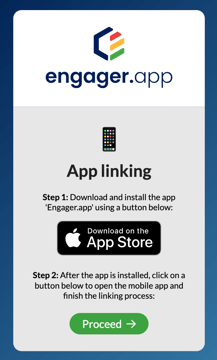
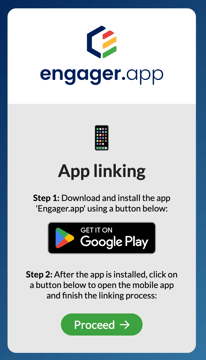
- If they haven't downloaded the app yet, the link opens an App linking page that prompts them to download the app 'Engager.app' from their app store (it shows the App Store or Google Play button to suit their phone).
Step 3: App installation and automatic linking
- Once the app is installed, have them select Proceed on the App linking page (or simply open the link again).
- The app will automatically link to their portal instance without needing any manual setup, such as scanning QR codes.
- If the app hasn't opened after 5 seconds, the page offers Try an alternative linking method (the QR code method), Contact support and Back to login.
Step 4: Confirm access
- Once linked, the client should be able to open the Engager app and see their linked account with your practice.
- They will have access to all the documents, requests, and communication channels that you've shared with them.
If your client opens your normal portal address on their phone instead, the login screen shows Try our mobile app with a Link the app button, which starts the same linking process.
Tips for your clients
- Help is available: Let your clients know they can reach out if they experience any issues during the linking process.
- Portal 'How-to' video: We put together a useful 3-minute video you can share with your clients: How to Use the Engager Client Portal: Step-by-Step Guide for Clients.
Troubleshooting
If your client faces any trouble, here are a few common solutions:
- Ensure the correct link: Double-check that 'mobileAppQuickLink' is added to the end of the URL.
- Reopen the link after installation: If the app was installed but didn’t link automatically, your client should try opening the link once more.
Universal Linking is all about simplifying the connection process for your clients, giving them an effortless way to get started and access everything they need. Feel free to share this guide directly with your clients to help them get up and running smoothly.