
What does the Agent Authorisation do?
We have provided you with a platform to request all the important agent authorisation codes so that you can speak to HMRC on behalf of your clients.
It covers letter-based agent authorisation for Corporation Tax, Self Assessment, PAYE / CIS but also… MTD VAT and MTD IT.
Once you’ve gone through the setup process, you won’t have to go to the Government Gateway for your requests or entering of any codes, this can now all be done via Engager.
What it won't do
We've been asked whether this will fetch live balances across all tax liabilities. To confirm, it will fetch MTD VAT and MTD IT. This information is on a separate API / part of the API, and we do have plans to build into this at a later date.
There is no API / access to PAYE / CT / SA balances on the old system.
How to set up
As it’s an integration, we first need to head to Settings > Integrations > HMRC to get this set up and authorised by HMRC directly. The HMRC integration page has two sections: Authorisation for MTD agent operations & VAT number checking and Letter-based Agent Authorisation.
Let’s start with Authorisation for MTD agent operations & VAT number checking.
- Select authorise, which will then take you to the Government Gateway to grant access. Remember to make a note of your agent references as well.
- Under MTD agent reference number, enter the reference number in Your MTD agent reference number: and select save.
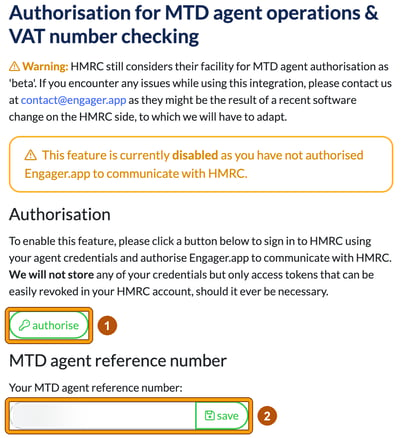
THERE MUST NOT BE ANY SPACES IN THE AGENT ID YOU ADD!!
That’s it, you’ve synced and authorised your Government Gateway with Engager.
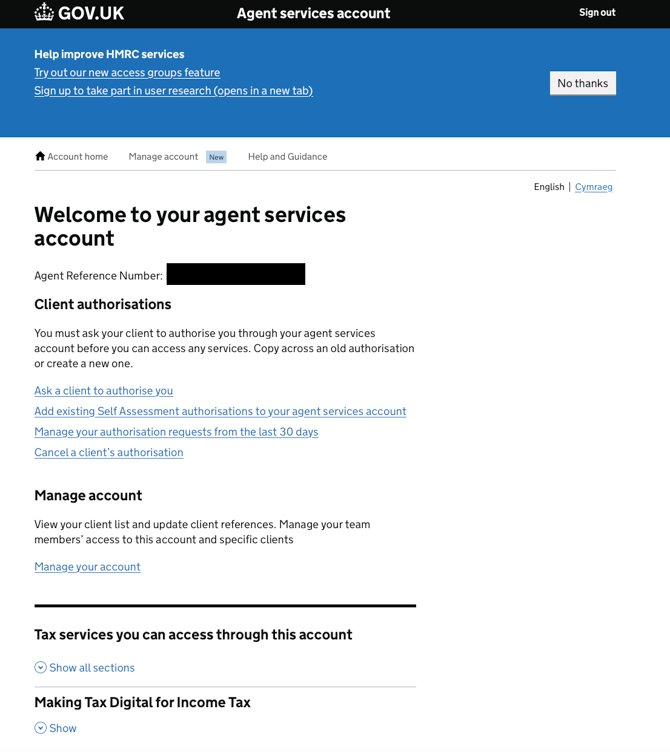
If you're struggling to find your Agent codes, these are the screens that you're looking for on the Government Gateway. Here you'll find your agent reference codes.
Log in to your digital agent account at HMRC: sign in to your agent services account.
The Agent reference you need is in the black box area in the image below.
Now, let’s take care of the Letter-based Agent Authorisation
- Under Letter-based Agent Authorisation, expand all of the chevrons: Corporation Tax credentials, Self Assessment credentials and PAYE / CIS credentials.
If you have all the IDs under one GG, then it makes it easier, but NEVER EVER copy and paste as there could be rogue gaps / spaces / hyphens.
If you have different credentials for each tax liability, you can still use our service. - Complete these as normal and save.
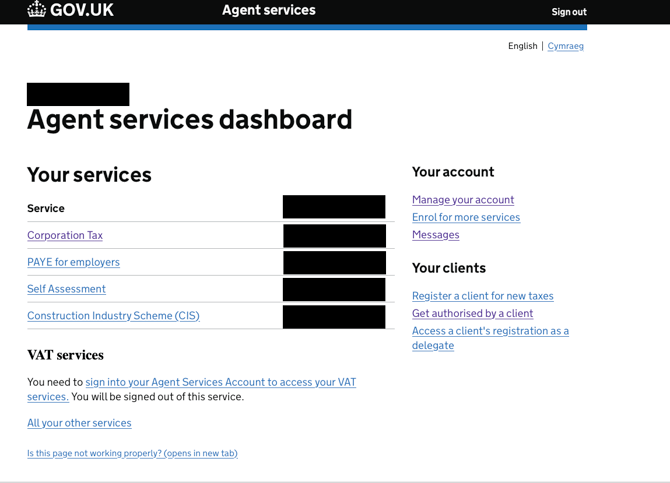
To find the IR Agent References, log in to your HMRC online agent services account. They are listed next to each tax type, in the black box area in the screenshot below.
Now that you’ve completed the set-up for your credentials and linked to the Government Gateway, let’s start authorising clients.
Authorising your Clients
Locate a client and open up Tax References in the client menu. This is where we’ll house all the credentials and authorisation updates.
With the VAT section, you’ll note that there sits the MTD VAT Agent Authorisation. This is where you can request your codes. The Self Assessment section has the same for MTD IT (MTD IT Agent Authorisation).
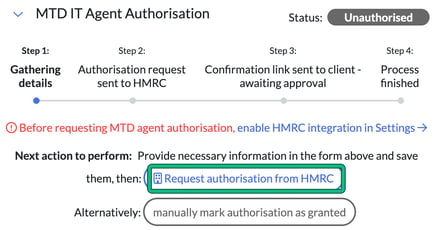
You will need to complete the VAT details first as usual, then select Request authorisation from HMRC. This button only works once the HMRC integration is authorised in Settings (see above). Until then, Engager shows “Before requesting MTD agent authorisation, enable HMRC integration in Settings”.
MTD Authorisations: what’s the process?
Simply complete the VAT information in the form, including VAT Number, date of Registration etc and select Request authorisation from HMRC.
Next steps: Engager generates a link and email to your client. The client grants authorisation.
Success. Yes, it's that simple!
You can follow progress through the four steps: Gathering details, Authorisation request sent to HMRC, Confirmation link sent to client - awaiting approval and Process finished.
Letter based
Let’s start the process of requesting letter-based authorisation for our clients.
In Letter-based Agent Authorisation, you’ll see the first button to press will be Request authorisation code from HMRC.
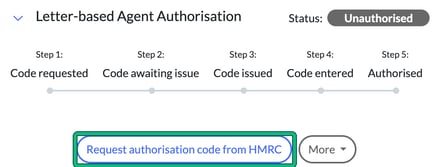
Once selected, this then starts the process with HMRC. The great thing about our system here is that you will not have to continually check the Government Gateway for updates. You can track it all here and we’re checking with them every 2 hours, leaving you to relax and carry on with your day-to-day activities.
Throughout the process, you’ll have a number of handy options available to you, to help keep the process moving along swiftly.
Our obvious favourite here is reminding your clients to send in the code!
Select More and then ‘Send email reminder to the client’.
You’ll then be presented with the Compose Email screen, with the HMRC Agent Authorisation Reminder template ready to go.
The message simply informs the client that they should have received a letter in the post with the code, and that they need to email it in to you. Please note that it needs to be emailed to you for now, as there are no options for the client to do this via their Portal.
Other options available will be:
- Abandon authorisation process entirely
- Request the code to be re-issued (super handy knowing HMRC and Clients)
Once you have received the code back from your client, you will have 3 attempts to get this accepted before HMRC lock the code for security reasons, so please be careful when entering.
To do this, select Submit authorisation code.
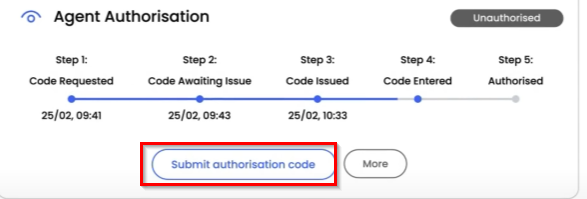
Then enter the code.
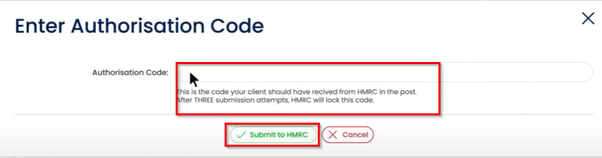
Once accepted, you’ll get a gloriously satisfying green ‘Authorised’ bar to let you know that the process has been a success.
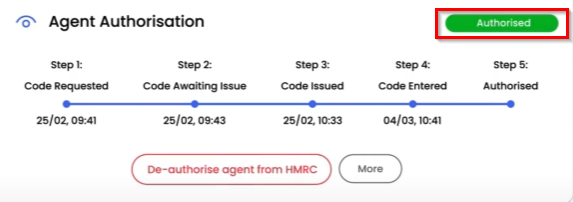
You can also now De-authorise agent from HMRC too, now that the process has been completed. Simply select the red button.
Already Authorised
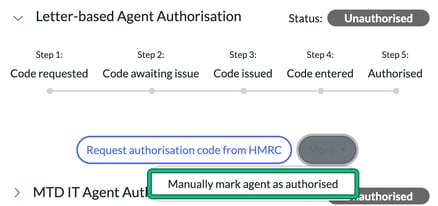
If you’re already authorised for Agent Authorisation, you can simply select More and then Manually mark agent as authorised. You’ll be prompted to enter the date that you were authorised.
Managing Agent Authorisations within Engager
Dashboard
To help track all of the requests, we’ve created 3 widgets on your Dashboard to help: Letter-based HMRC agent authorisation, HMRC MTD agent authorisation and Manual agent authorisation. If you can’t see them, select the gear on your Dashboard and choose Manage dashboard to switch them on.
The Letter-based HMRC Agent Authorisation and MTD widgets will help you keep track of where you are with the requests, broken down by client, tax liability, who created the request and when.
Ready to bulk update your Agent Authorisation Status for MTD VAT and MTD IT?
See How to download HMRC client data for agent 64-8 and bulk update within Engager.
64-8 Error message
'The user that is signed in cannot access this authorisation request. Their details do not match the agent business that created the authorisation request'
We're seeing many people have this message appear. Essentially, there could be a rogue gap somewhere in a reference, credential, post code etc. Please do not COPY AND PASTE any codes etc.
There should be no spaces in the agent reference. It's the LLLLNNNNNNN format, and it cannot have spaces before, in or after it.
Removing spaces has cleared 99% of error messages.