
This is the first thing you should do when using Engager for the very first time. It will take a few minutes, but starting off on the right foot, by telling us who you are and the basics about your company, will help with a smooth onboarding setup.
Enter your company details
- Simply head over to Settings: select your name at the top right, then Settings.
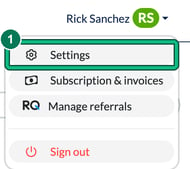
- Under Practice details, select Company Information.
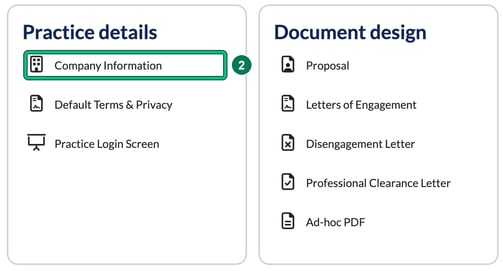
- Then you can start entering all the relevant details about your company, from your practice name, company number and addresses to your contact details and your Core Values. When you're done, select Save.
Your logo and colours
You can also have a play with the theme of the platform and also your logo. Upload your logo under Logo (light mode) (up to 2MB, and at least 1000 px is suggested), and choose a separate Logo (dark mode for Client Portal) if you need one.
The theme comes from your Lead colour (or select get colours from logo) and your Text colour when on a lead colour background. A demo swatch shows the two colours together.

Your Core Values
With the Core Values, take a moment to consider what these are and how you want your staff to behave. Select + add core value and give each one a Name and a Description. We use these values on your home screen.

We do this as it's a great reminder to all people using the Engager platform but also, rather handily, you can use it if you have clients into the office. By selecting Home (the house icon in the top bar), clients won't be able to see any sensitive information: it shows only your core values and any website, email or phone number you've ticked to show on homepage.