
A client risk assessment template sets the questions you answer when you assess a client's anti-money laundering (AML) risk, and how risky each answer is. Engager includes default templates, and you can create your own.
Open your templates
- Select AML in the top menu.
- Under Templates, select Open on Client Risk Assessment Template.
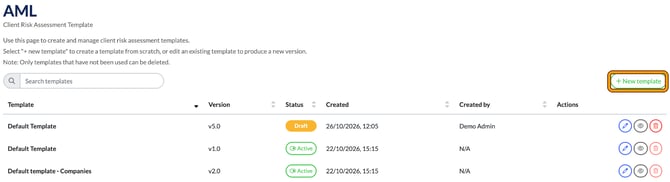
You'll see each template with its Version, Status (Draft or Active), Created date and Created by.
What's in a template
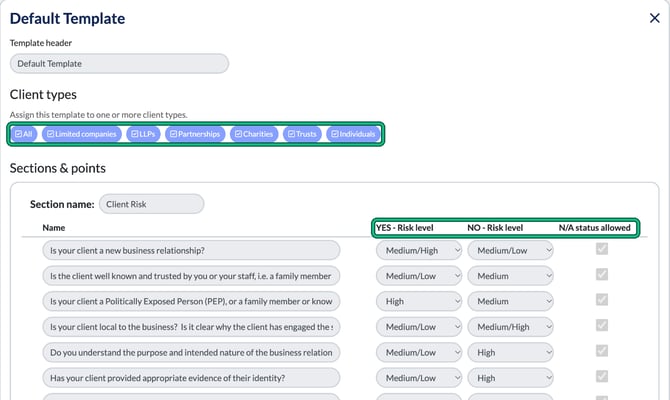
- Template header: the template's name.
- Client types: the client types the template is for. Choose one or more of All, Limited companies, LLPs, Partnerships, Charities, Trusts and Individuals.
- Sections & points: groups of questions. The default template has Client Risk, Geography Risk, Products and Services Risks, Transactions Risks and Delivery Channel Risks.
For each question you set:
- YES - Risk level: the risk if the answer is Yes.
- NO - Risk level: the risk if the answer is No.
- N/A status allowed: whether N/A can be chosen.
The risk levels are High, Medium/High, Medium, Medium/Low and Low.
Create a new template
- Select + New template.
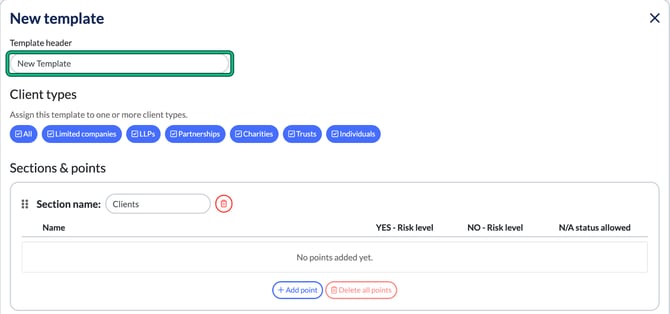
- In Template header, enter a name.
- Under Client types, select the client types this template is for.
- In each section, select + Add point and enter the question. Set its YES - Risk level, NO - Risk level and N/A status allowed.
- To add a section, select + New section.
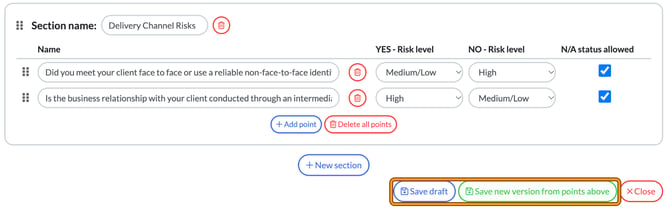
- Select Save draft to come back to it later. When it's ready, select Save new version from points above.
The template now appears in the list. Save new version from points above makes it Active, so it can be used for risk assessments. A template saved with Save draft stays as Draft until you do this.
Edit a template
Editing a template doesn't change it in place. It saves a new version, so assessments already done keep the version they used.
- Select the pencil button next to the template.
- Change the questions, risk levels or client types. Use the bin button to remove a question or section, and the drag handle to reorder them.
- Select Save new version from points above.
The list shows the new version number, for example v2.0.
To look at a template without changing it, select the eye button.
Stop using a template
To stop using an active template, select Active in its Status column. When you point at it, it says Deactivate.
Delete a template
You can only delete a template that hasn't been used. Select the bin button next to it. If the bin button is faded, the template has been used and can't be deleted.