
Multiple offices lets you set up each of your offices in Engager, then assign clients and staff to them. It suits practices with several branches, firms that have merged with or bought another practice, and groups with several legal entities under one brand.
Once it's on, you can filter and group your work by office, and add each office's details to your emails and documents. Multiple offices is included in every plan at no extra cost.
For an overview, see the Multiple offices feature page and the release announcement, or watch the walkthrough:
Switch on Multiple offices
- Go to Settings > Practice details > Offices.
- Next to Multiple offices, select yes.

Engager creates your first office from your Company Information. It appears in the Manage offices list.
The first time you switch it on, all your existing clients and users are put in this first office. You can then move them to other offices, as shown below.
Add or edit an office
- Go to Settings > Practice details > Offices.
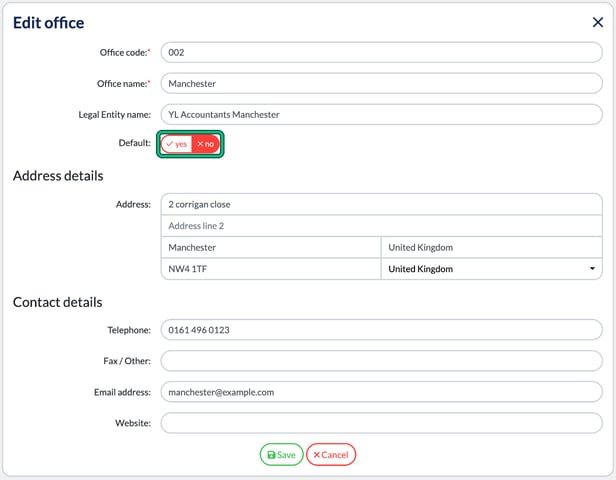
- To add an office, select + Add new office. To change an office, select the pencil button next to it.
- Fill in the office details (see the list below).
- Select Save.
The office now shows in the Manage offices list.

The office form has these fields:
- Office code (required): a short code for the office, such as 002.
- Office name (required): the name your team and clients will see, such as Manchester.
- Legal Entity name (optional): use this if the office trades as a separate legal entity.
- Default: whether this is your default office (see the next section).
- Address details: the office address. Postcode is required.
- Contact details: the office Telephone and Email address, plus Fax / Other and Website if you use them.
The Manage offices list shows each office's Contact number, Users (Primary Office), Users (Total) and Clients Assigned. Use the buttons under Actions to edit or delete an office.
Set the default office
New clients and new users are put in your default office automatically.
- Go to Settings > Practice details > Offices.
- Select the pencil button next to the office you want as the default.
- Set Default to yes.
- Select Save.
The default office now has a tick in the Default column of the Manage offices list.
Assign a client to an office
Each client belongs to one office.
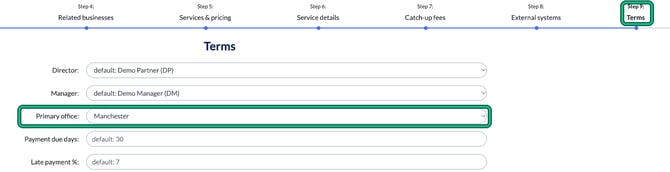
- Open the client and go to the Terms step.
- In Primary office, choose the office.
- Select Save.
The client's office now shows in the Office column of your client list.
Move several clients at once
- Go to Clients.
- Tick the clients you want to move.
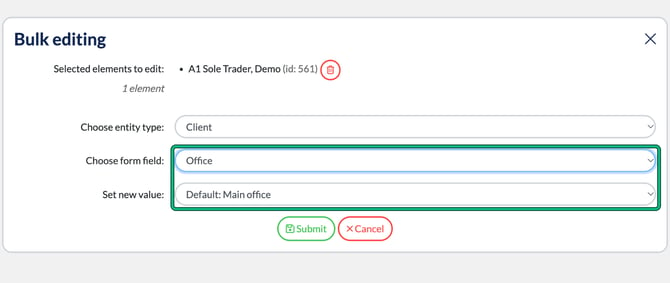
- Select bulk actions, then Edit client or service data.
- In Choose entity type, choose Client.
- In Choose form field, choose Office.
- In Set new value, choose the new office.
- Select Submit.
The Office column now shows the new office for each client you ticked.
Set a user's primary and additional offices
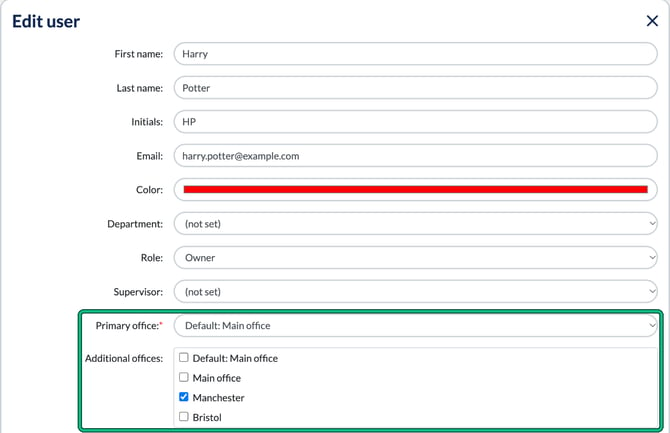
Each user has one primary office. They can also have any number of additional offices, so someone who works across two branches can be in both.
- Go to Settings > Staff > System users.
- Select the pencil button next to the user.
- In Primary office, choose their main office.
- Under Additional offices, tick any other offices they work in.
- Select Save.
The office's user counts in Settings > Practice details > Offices now include this user.
Filter your client list by office
- Go to Clients.
- Select filters, then Office under Client info.
- Tick the offices you want to see, then select the green tick button.
The list now shows only clients in those offices. The Office column shows each client's office.
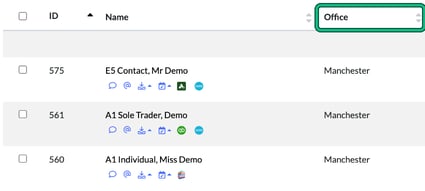
To export the clients for one office, filter the list by that office, then select data and export.
Filter and group jobs and deals by office
Jobs and deals use the office of the client they belong to.
- Go to Jobs (or Deals).
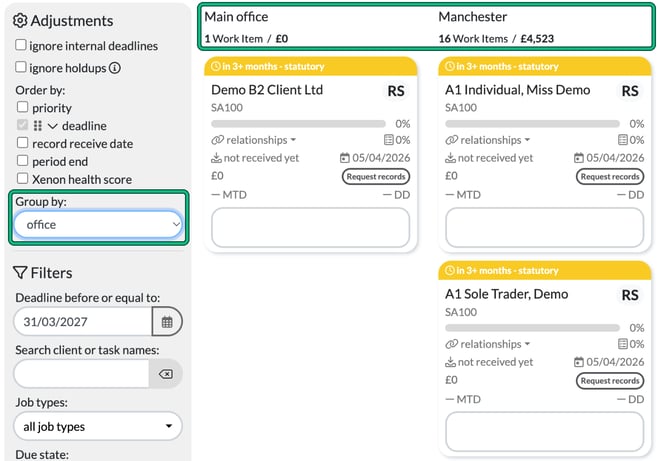
- To group the board by office, set Group by to office.
- To see one office only, choose it in the Office filter.
You'll see a column for each office, with that office's work in it.
Save an office view
Once your jobs board is grouped or filtered by office, you can save it so you don't have to set it up each time.
- Select Views.
- Select Save current state as private view (just for you) or Save current state as shared view (for your whole team).
Your saved view now appears under Views in the Jobs menu.
Add office details to emails and documents
Office placeholders fill in the details of the client's office when an email or document is created. Insert them the same way as other placeholders, using the placeholder button in the template editor.
- [OfficeName]: the office name.
- [OfficeAddress]: the office address.
- [OfficeEmail]: the office email address.
- [OfficeTelephone]: the office telephone number.
- [OfficeLegalEntityName]: the office's legal entity name.
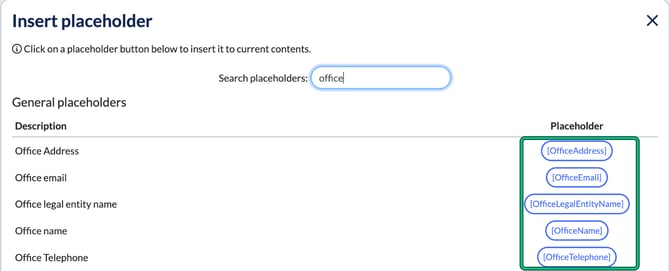
Example: a message template says "Call us on [OfficeTelephone] or visit us at [OfficeAddress]". A client in your Manchester office sees Manchester's telephone number and address. A client in your London office sees London's.
Switch off Multiple offices
- Go to Settings > Practice details > Offices.
- Next to Multiple offices, select no.
Office fields and filters are now hidden across Engager. Your offices and office assignments are kept, so everything comes back if you switch it on again.
Delete all office data
Warning: this cannot be undone. Delete all office data permanently deletes all your offices, every client and user office assignment, and your default office settings. It is separate from switching Multiple offices off. If you only want to stop using offices for now, switch the feature off instead.
To delete everything, go to Settings > Practice details > Offices and select Delete all office data under Remove office data.

Also in this release: internal deadlines
Internal deadlines no longer have to fall before statutory deadlines, so you can set the dates that suit your practice. Internal deadlines still take priority when you sort and filter jobs.
FAQs
Does Multiple offices cost extra?
No. It's included in every plan at no extra cost.
Can a user work in more than one office?
Yes. Each user has one primary office and can have any number of additional offices. See "Set a user's primary and additional offices" above.
What happens to my data if I turn it off?
Your offices and office assignments are kept. Office fields and filters are hidden until you switch it back on. Only Delete all office data removes them, and that cannot be undone.
Can a client belong to two offices?
No. Each client belongs to one office.