
A biometric ID check asks your client to verify their identity themselves. Engager sends them a link, and the result is saved on their AML tab.
Choose the right check
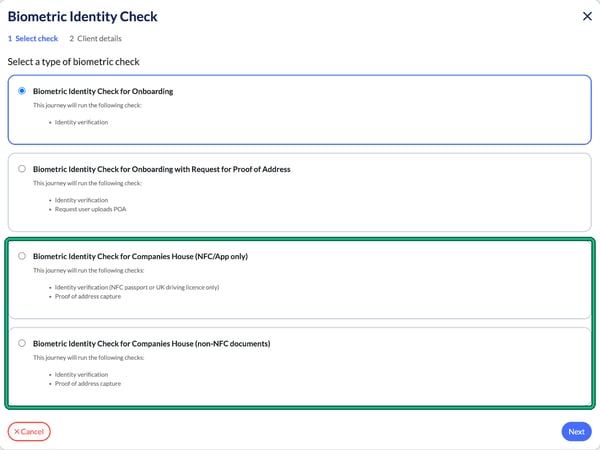
There are four types of biometric check:
- Biometric Identity Check for Onboarding: identity verification.
- Biometric Identity Check for Onboarding with Request for Proof of Address: identity verification, and the client uploads proof of address.
- Biometric Identity Check for Companies House (NFC/App only): identity verification with an NFC passport or UK driving licence only, plus proof of address capture.
- Biometric Identity Check for Companies House (non-NFC documents): identity verification and proof of address capture, for clients without an NFC document.
Use a Companies House check when the client needs to verify their identity for Companies House.
Send a biometric check
- Open the client and select AML in the left-hand menu.
- Under Electronic Verification, select + new next to Biometric checks.
- Choose the type of check, then select Next.
- Check the client's name.
- Under Client communication, enter the client's Email. To send it to their phone as well, tick Mobile and enter their number.
- Select Send link to client. Engager shows how many credits the check will use underneath. For example, a Biometric Identity Check for Onboarding uses 9 credits.
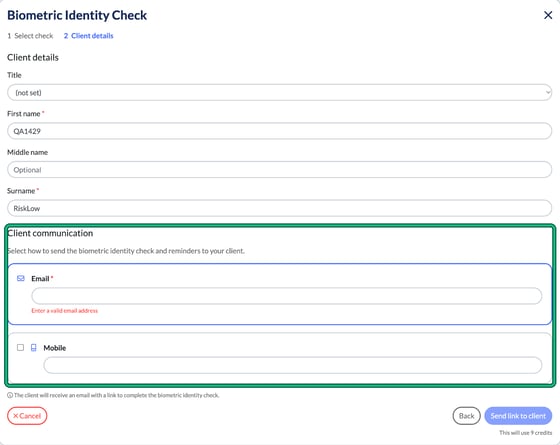
The client receives an email with a link to complete the biometric identity check.
See the result
Once the client has completed the check, it appears under Biometric checks on their AML tab. You'll see the type of check, when it was completed, the overall result and the result of each part, for example Document verification and Liveness.
Select the eye button to open the Biometric check report, or the download button to save it.