
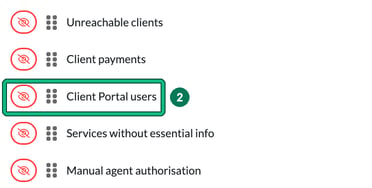
There's a widget on the dashboard to show you this insight: Client Portal users. If you can't see the widget you may have hidden it. Manage dashboard lists all widgets, so you can unhide the ones you want.
- On My dashboard, select the cog at the top right, next to ignore internal deadlines for job widgets.

- In Manage dashboard, select the eye next to Client Portal users to show it.
Inviting an individual client
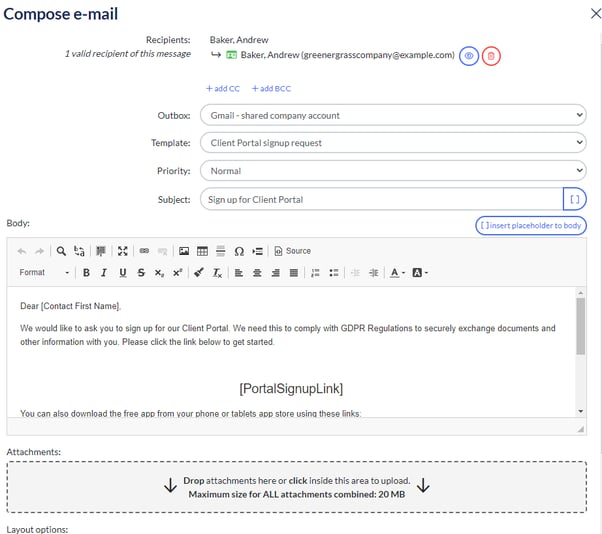
When you're on your client page, we've created a handy visual prompt for you to see whether a client has accessed the system. On the client summary screen, Related individuals & contacts shows Portal: not invited with an invite option. If you see this when dealing with the client, we're prompting you to take care of it there and then.
Select invite and you'll be taken to your email message, which you can send from there.
Inviting multiple clients
As with all things Engager, we're trying to help you be as efficient as possible. So once you've realised that you may have other clients that haven't been invited, let's check to see if there are any more out there.
Head to your dashboard and look for the Client Portal users widget.

Ooof, I'm a bad practice manager: 82!! That's ok, let's take care of this asap! Select 82 not invited.
You can then select all in one go, or select individually. You'll also see that some don't have emails. That's more housekeeping you'll need to take care of!
Now you've sent your invites, you'll likely face the question of 'I've forgotten where to log in' or 'what's my password' and so on.
Reminding clients of their login
You will never know a client's password, for obvious reasons. So if they do ask for a reminder, tell them about the 'password reset' option that every human being should be familiar with by now. And yet, we know you'll still get asked this question!
But first, what's their login? It's ever so slightly different from the URL that you log into for your practice.
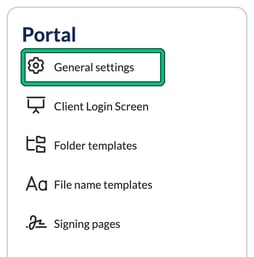
Head to Settings > Portal > General settings.
Under Portal link you'll see the address your clients should use. We've given you a handy copy button to paste it back to your client.
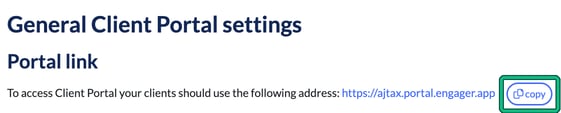
The URL login link will be different from your practice's by that simple word 'portal' added into the URL.
Yours: yourcompanyname.engager.app
Theirs: yourcompanyname.portal.engager.app
Curious to see what the client can see?
If your client struggles to log in, they will get an error message “Unknown fetching error -code 400”.
This error means either they are using the wrong email address (it should be the email you have saved against the client record in Engager), or the client hasn't accepted and signed up for the portal. You can tell if the client is signed up to the portal by going to their record in Engager. On the client summary you will see the below.
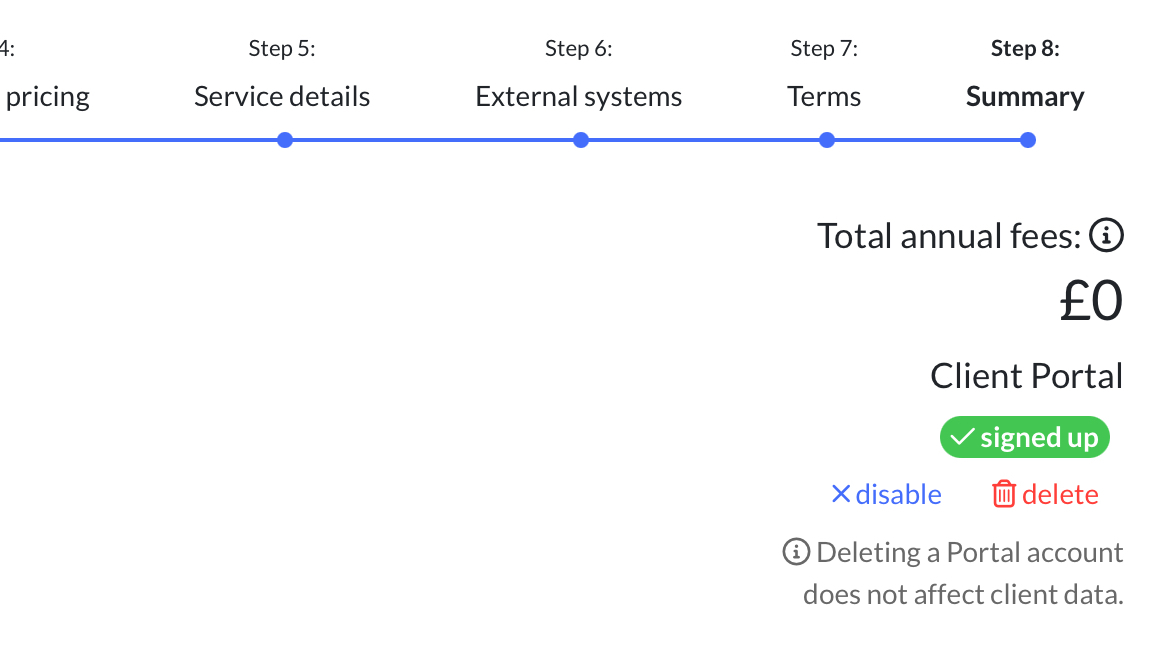
As you can see above, they are signed up. If they are using the right email and still unable to access the portal, delete the portal account using the delete button and then re-invite them.