
One of the most powerful tools within Engager is our client approval process. No more attaching bulky PDFs or workings to an email and worrying about file size limits, no more potential issues with emails being insecure or being diverted to junk.
We’ve developed our system to be super secure and convenient for you to send documents and also, for your client to view and approve documents securely and all within one place.
Want to watch our How to Go video instead?
Any document can have a Signing Request so let’s get started.
In this example, we’re going to send a VAT Return for approval.
Uploading Documents to the Client Portal
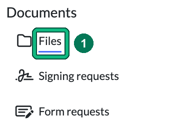
- Head on over to your client and, in the left-hand menu under Documents, select Files. This opens the File browser.
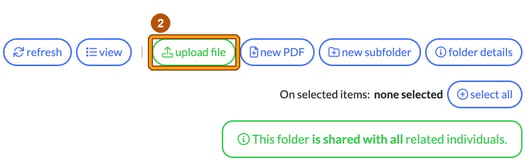
- Open the folder the document belongs in, then select upload file. You’ll only see upload file once you’re inside a folder, not at the root folder.
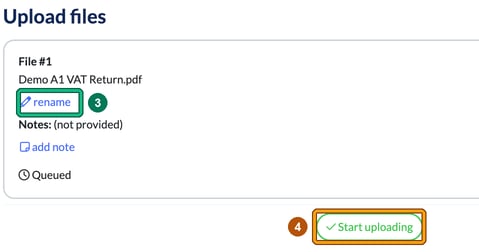
- Either drag and drop, or select inside the box to locate the document (the maximum size is 50 MB). If you spot that the file isn’t named to your liking, there could be too many digits after the document name which can happen, so we’ve built a handy rename tool.
- Select Start uploading.
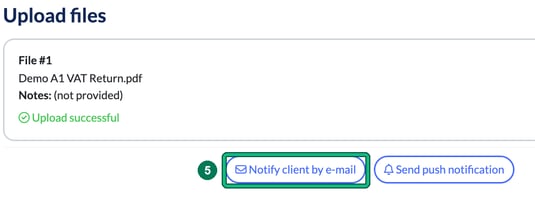
- Once you see Upload successful, you can let your client know the document is there by selecting Notify client by e-mail (or Send push notification). This only tells your client that a new file has been uploaded. It doesn’t ask them to sign it; you do that in the next section. You can tailor your email just before sending.
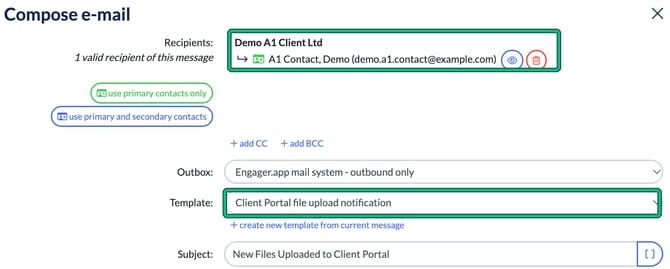
Requesting the signature
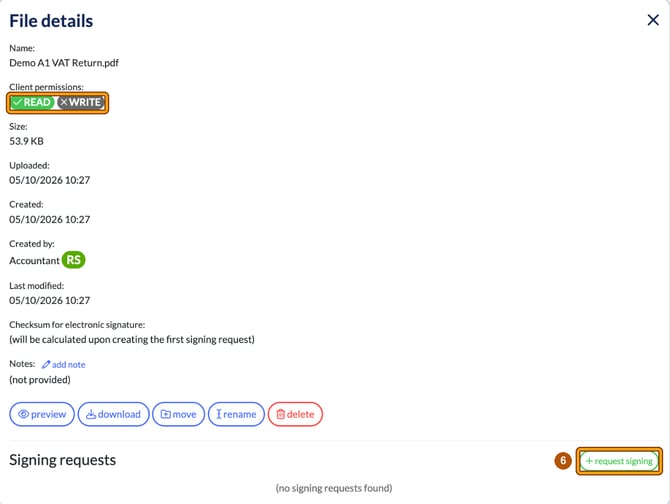
- In the folder, select the document’s name to open File details. Under Signing requests, select + request signing.
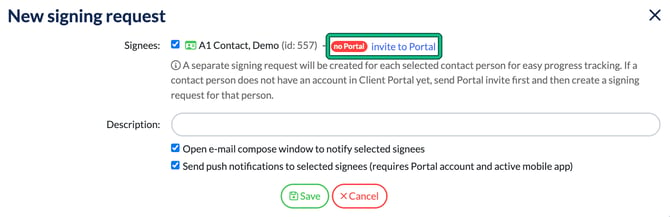
- In New signing request, tick the Signees and add a Description. We’ll even give you a visual indicator that your client won’t be able to sign as they don’t have access to the portal: a red no Portal badge next to their name. If you see it, select invite to Portal first, as we want all clients to be operating out of the portal to keep everything safe and secure and easy to find, then create the signing request for that person once they have a Client Portal account. Choose whether to tick Open e-mail compose window to notify selected signees and Send push notifications to selected signees, then select Save.
Now that the document has been sent for signing, you can preview the document from File details if needed.
If your client can’t see the document
From File details you can see if there are any issues with the client being able to see the document to then approve: check the Client permissions. If the file is in a folder your client can’t read, Signing requests shows the warning “Client is not allowed to read this file so will not be able to sign it.” and + request signing is greyed out.

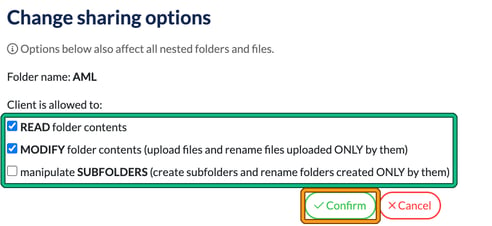
If the folder isn’t shared with the right permissions, select Settings > Portal > Folder templates and choose the Client type to correct it. Each folder shows READ, WRITE and SUBFOLDER badges: green means the client is allowed, grey means they aren’t. Your client needs to be able to read the folder to sign anything in it, so for the folder in question we want to see GREEN on READ.
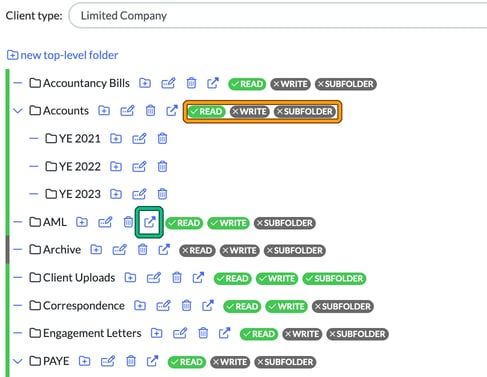
Select the change sharing options icon for the folder. In Change sharing options, tick READ folder contents. MODIFY folder contents (shown as WRITE on the badges) lets the client upload files to the folder too; in this example both are ticked. Select Confirm. These options also affect all nested folders and files.
Now all you need to do is head back to the Folder in question and try again.
Tracking and reminders
If you want to track or remind clients to sign their documents, head down to Signing requests in File details. Each request shows its Status, for example Pending.
By using the bell button in the Actions column, we can send out a reminder to the client to sign: choose Notify by e-mail or Send push notification.

Dashboard widgets
We’ve made it even easier for you to stay on top of your Signing Requests too, as we’ve built a Dashboard widget for a quick overview.
The Document Signing Requests and Unsignable Documents widgets are hidden by default, so switch them on first: on your Dashboard, select the gear, choose Manage dashboard and select the eye icon next to each widget.
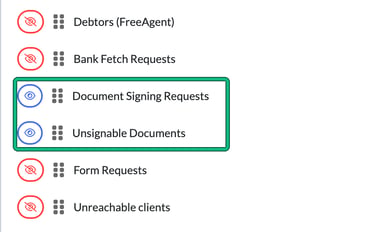
Head to your Dashboard and Document Signing Requests.

From here you can dive into the most immediate issues and see your oldest signing requests. To send out a timely prompt, use the bell button on the request in File details, as described in Tracking and reminders above.
We’ve even built a Widget, Unsignable Documents, for you to see any future issues with ESigning. It could be that you forgot to follow the sharing steps above, or you’ve not sent out the Portal details to your client. We’re making you aware of these at every step of the way as we know how vital it is to having a smooth approval process.

Select an issue, for example the signee issue, to list the documents affected. Where Signee has Portal shows no, that person hasn’t got Portal access, so select their names in blue and you’ll be taken directly into the account to take care of it using the above steps.

When your client signs
Any document that is approved will appear in your notification icon at the top of the screen.
PLEASE NOTE: you will be emailed that the client has approved the document.
Find out more about Notifications in 5 of 10: Notifications, User Mentions, Custom fields and Forms.
From your client’s point of view, we’ve built a very handy way to actually sign or reject the document. They won’t need to scroll down to the pages with the signature request; they can simply do this in the upper right-hand corner of their portal. They can even comment if they need to or include some feedback if they’re rejecting the document.