
In Engager, you can create invoices to then be raised / issued and sent to your client via your chosen integrated software provider, e.g. FreeAgent, QuickBooks (QBO) or Xero.
First you must ensure that you've set up your integrations with your software in Settings > Integrations. See 10 of 10: Seamless Integration for Streamlined Workflows.
Once you have integrations added into your Engager account, you can raise an invoice to any client directly from your Invoices tab, at the top of the screen. Choose your software (QuickBooks, Xero or FreeAgent) and select + raise invoice. You would then select the client and complete the invoice details in the Raise invoice form there. The Client: list only shows clients linked to that software.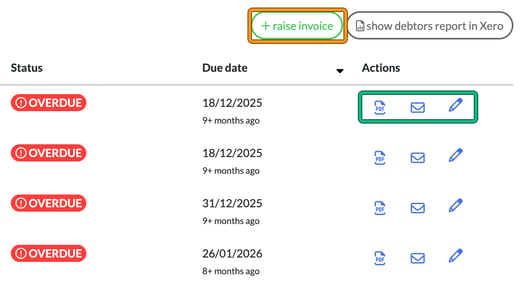
Link your client
Once you've got the integrations set up in Engager, you should then set about LINKING your client. Head to your Client, then in the client form go to Step 8: External systems. Under Official integrations > Bookkeeping:, locate the relevant button, Link with QuickBooks or Link with Xero, see below. Each shows a red not linked badge until the client is linked.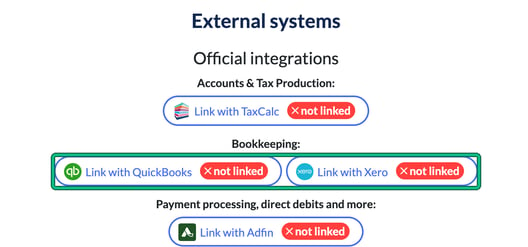
Please make sure that what you're entering matches perfectly, even having LIMITED vs LTD can cause an issue with the sync. That's just how API connections work.
Once linked, you should see a happy green 'linked'.
You'll then start seeing that you can open up your integration when looking at a client that is linked, as you'll see the integration logo start appearing.
Now that you're linked, you can raise an invoice directly to that client.
You can also see invoices that have been raised against that client, when you're in that client record. When on a client, check out the left-hand side, select the software and then voila: all invoices raised.
Then on the right, you'll have some options in the Actions column: show PDF, email using your chosen software and even edit the existing invoice in your chosen software (the pencil, edit invoice in Xero for Xero).
Raise an invoice
Raising an Invoice is straightforward from this screen, but also from your Invoices tab at the top of the page.
Complete your Invoice as normal and select submit at the bottom. If you use FreeAgent, before hitting submit, check out the options for the emails: send the email automatically when hitting submit? Payment Reminders? Thank you notices? These can be selected with the tick boxes. These options are only offered for FreeAgent; the QuickBooks and Xero Raise invoice forms don't have them.
Invoice from a Job Card
So, we've covered how you can do this as standalone AD-HOC Invoices, but here's how you can invoice via a Service / Job Card.
At the bottom of every Job Card, there's the option to raise an invoice to the client: super handy when you're working through a Self Assessment or finalising Year End accounts.
You may want to add a PHASE for Invoicing, 'Send Invoice'. You can add additions to your Phases in Settings > Jobs > Services: edit the service (pencil) and, under Phases, select + add phase here.
Head to the bottom of the Job Card, and you'll see that there's an Invoice tab. Select + raise and choose your software, then you can create and issue the invoice from this screen. Super handy and it means that you won't forget to do it as it's part of your workflow now.
Invoice already raised in your integration?
Not a problem, link them together by selecting link existing and choosing your software.
Remember, you can also mark a PHASE as the 'billing point' as a reminder to issue an invoice. You can do this in the service settings by ticking Set as billing point for the phase, and it will appear in the job's Phases table as a small banknote icon next to that phase. Perhaps it's a little too subtle, so if it is and you feel you might miss this, use the above method: have a phase called SEND INVOICE.