
In this video we look at how to manage your folder structure in Engager.
Folder Templates and Structures
This is where you can set what folders you will need per client type, so folders for Self Assessment clients and folders for LTDs. All folders with read permissions show up straight away in each client's Portal.
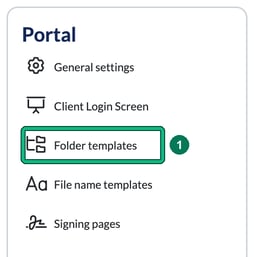
- Go to Settings > Portal > Folder templates and choose a Client type.
- You will see 3 options on each top-level folder: READ, WRITE and SUBFOLDER. The most important of these is READ: when it is green, your client can SEE the folder's documents in their client portal.
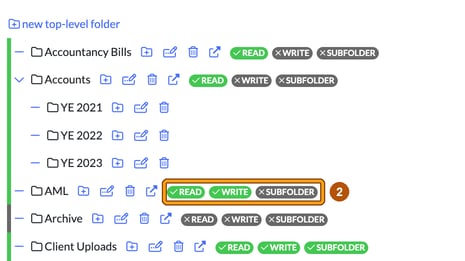
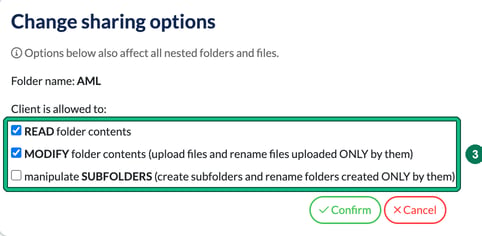
If WRITE is green, it means that your client can interact with that folder: they can read, and upload their own documents to that folder. Handy. - It's very quick and easy to change these permissions. Select the change sharing options icon, the fourth icon on the folder's row, then tick the options accordingly in Change sharing options and select Confirm. In this window, WRITE is labelled MODIFY folder contents. The options also affect all nested folders and files.
- If you hold documents such as working papers for your client, keep them in a top-level folder that isn't shared with the client, so its READ badge shows grey. A subfolder inside a shared folder is shared too. If there's anything sensitive, make sure the folder remains grey.
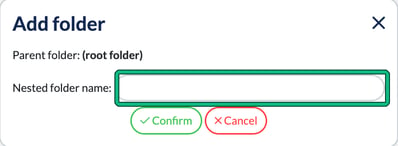
- If you want to add a new folder, select + new top-level folder, enter a Nested folder name and select Confirm.
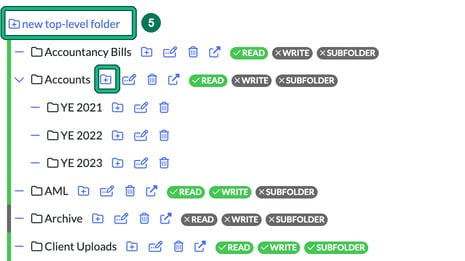
- To add nested folders within it, select the add nested folder icon on that folder's row (highlighted on the Accounts folder in the image above).