If you have a specific Service Schedule that you would like to use in Engager, you can do this but first you will need to edit or create the Document within Engager. If you’re at this stage, head to How to add and customise document templates and Letters of Engagement first.
In this video we take a look at how to link services to the service schedules you create.
Once you’ve created your Service Schedule, you will now need to activate and assign these for you to use in Engager in Settings > Jobs > Services.
So for example, if I’ve created a new Service (+ add custom service), I add in my freshly created Schedule of Services in the Schedule of Services template for LoE: field. The field lists all your document templates.
If you have added your Schedule of services for VAT that you like to use, you will need to update the Master Settings similar to above. Head to Settings > Jobs > Services, locate the VAT service, select the pencil in the Actions column to open Edit service, and change the Schedule of Services template for LoE: drop-down to your new Schedule of Service.

This will mean all future uses of this service will use your preferred SOS. The Schedule of Services template for LoE column on the Services list shows which schedule each service uses.
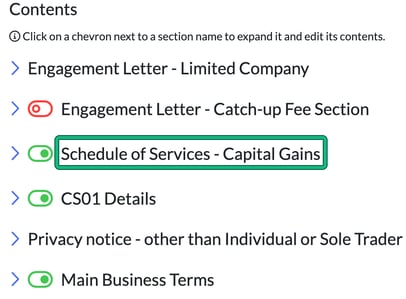
Now when you go to generate your engagement letters etc, it will pull through your newly created SOS. In Customise document, the letter is followed by one section for the schedule of each service enabled for that client.