
With Engager, you can create as many Letters of Engagement as you need, but we must make you aware of the mechanics of how it works and what you need to do to keep your records up to date and aligned.
A Client has requested an additional service
We see this quite often when your end client grows. Perhaps they've expanded to the point where they need to register for VAT, and your client now wants you to help prepare and file their VAT Returns. This is great news as it's more revenue for you and you're keeping your client compliant.
You'll need to discuss your pricing with your client and guide them how it all works. When you're ready to formalise this in Engager, you should issue them a Letter of Engagement with the price and schedule of service.
How to record this in Engager
In Engager, you cannot issue ad-hoc Letters of Engagement for single services. Every service enabled on the client is pulled into a new Letter of Engagement.
So, on the client record, you would need to add the VAT Service as normal in Step 5: Services & pricing and Step 6: Service details. For an added service to appear in the letter's schedule, the service needs a Schedule of Services template. A custom service has none unless you set one.
Then, on the left-hand side under Documents, head to Proposal, LoE & LoD. Here you'll see your original LOE that has been approved by the client, in a dated timeline of the client's documents.
We recommend downloading the original LOE with Download and saving a copy. Older LOEs stay in the timeline when you create a new one, so the history also remains in the client record.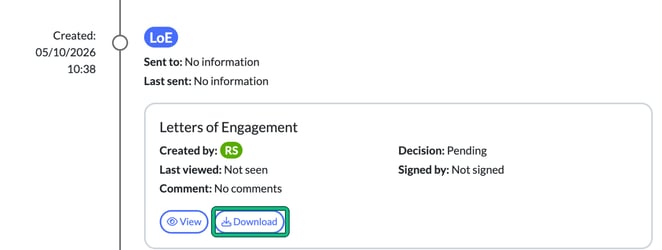
What you could also do is store this in the client's Files for them, in case they ever want to see what was originally agreed. Choose a folder and select upload file. You don't need to notify the client of this as it would confuse them. Be aware that some folders are shared: the Correspondence folder, for example, shows "This folder is shared with all related individuals", so anything you store there is visible to the client in their portal. If you don't want the client to see the copy, store it in a folder that isn't shared.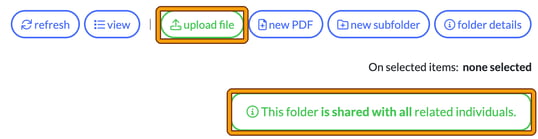
Now we've saved our original LOE on our desktop, or against the client record, we can now safely go ahead and create our latest LOE, pricing and terms.
Let's select + Create new, choose Letters of Engagement, leave Contents: on Use default and select Create. You'll see "Generating your document..." and then a Disclaimer: select OK. The new LOE appears as a Draft.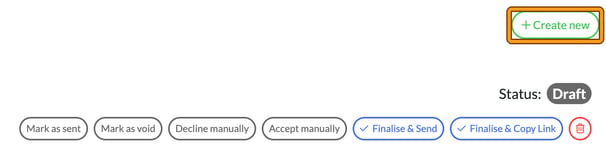
This will pull through your new changes that you've made in Steps 5 and 6 for your new VAT Service.
To avoid client confusion, we strongly recommend that you include a paragraph in the LOE and the Compose e-mail window, as you may get the odd client questioning why they need a new LOE / Separate terms etc.
A statement along the lines of 'This LOE replaces the original and will become the only agreement in place'.
For the LOE: Edit, customise and Generate
On the draft's document card, select Edit to open Customise document. Open up the Engagement letter with the chevron and then add in our statement, perhaps under the Engagement Letter heading. Select Generate when you're done.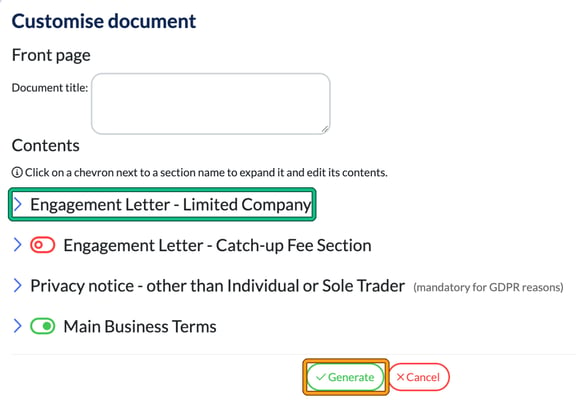
Once generated, select Finalise & Send, choose the direct debit option and select Save and proceed, then add the statement into the email message in Compose e-mail. The LOE is finalised at this point and can no longer be edited, so make any changes to the document first.
And that's it: your client's account is updated and you've got the latest Letters of Engagement sent out and agreed.
The alternative, which we don't recommend, would be to create a new email to the client, outline your fresh proposal with all the services and new pricing.
Add in a couple of lines and then use the placeholders [Services] and [FeesTable].
Once your client agrees to the changes, use the method above.