
How to edit a user
Need to update a team member’s email, charge-out rate, or permissions? No problem! Follow these simple steps to edit their details:
- Go to Settings > Staff > System users.
- Find the staff member’s row in Registered users. The buttons are in the Actions column on the far right; if your screen is narrow, scroll the table sideways to see it.
- Select the pencil icon (edit user) to open Edit user.
You'll now see all the options you need to make changes, including the email, charge-out rate and permissions. Select Save when you’re done.
Staff forgot their password or sign-up link expired?
It happens! Here’s how to help them reset:
- Head to Settings > Staff > System users.
- Find the staff member’s row.
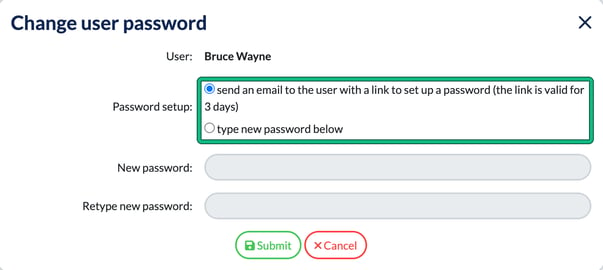
- Select the blue lock button (security) in the Actions column, then Change password.
- Under Password setup:, choose to send them an email with a link to set up a password (note: the link is valid for 3 days), or
- Choose type new password below to create a temporary password, and let them know to reset it after logging in.
Select Submit to apply your choice.
Need to remove a user? Archive instead
For data integrity and audit trail reasons, users can't be deleted, but you can archive them.
Archived users still appear in dropdowns, but all the way at the bottom for less clutter, with "- archived" after their name. (We're working on improving this!)
To archive a user:
- Go to Settings > Staff > System users.
- Find the staff member’s row.
- Select the pencil icon (edit user).
- Scroll to State: and switch from active to archived.
- Select Save.
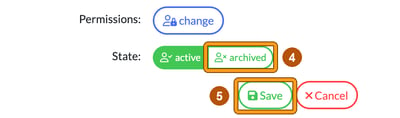
To see archived users in the list, tick show archived users above the table.
2FA lockout after a phone upgrade?
We know how frustrating it is when someone upgrades their phone and loses access to their authenticator app, especially on a Monday!
If a staff member is stuck with 2FA login issues:
Ask them to email contact@engager.app with the subject: “2FA Issues”
Important: We need to hear from the staff member directly for security reasons. You can’t request this on their behalf.