
Your Dashboard should act as your visual prompt to take action. It’s very visual and lights up the closer you get to any deadline. If your Dashboard is full of red overdue counts, you need to take action asap!
When the Dashboard is screaming at you that items are overdue, stop what you’re doing and take a look. Realistically, it could be that you’ve not moved the job cards forwards, but then you’re overdue on your housekeeping of Engager!
How you choose to see your services and groups is entirely up to you, so let’s see what you can do to customise your Dashboard.
Widgets and service groups
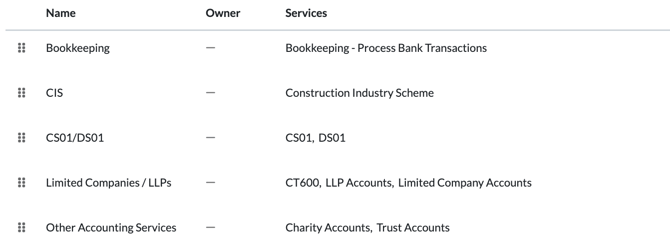
First things first, these groupings are called widgets. They contain the data from your services that have been GROUPED together. So if you panic wondering why you don’t have a service appearing on the Dashboard, it’s because you’ve not created a GROUP to house it. Head to Settings > Jobs > Service groups and create one with + add group. Each service group gets its own dashboard widgets: one for overdue work items and one for work items due soon.
Arrange your widgets
To change the order of your widgets, click and drag them. My dashboard reminds you with the hint Click and drag to rearrange.
If you want to streamline what you see and have a more minimalist Dashboard:
- Select the cog at the top right of My dashboard, beside ignore internal deadlines for job widgets. This opens Manage dashboard.
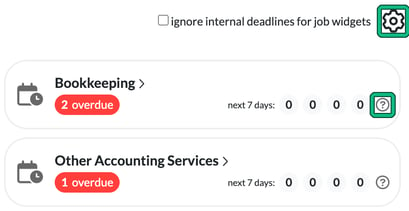
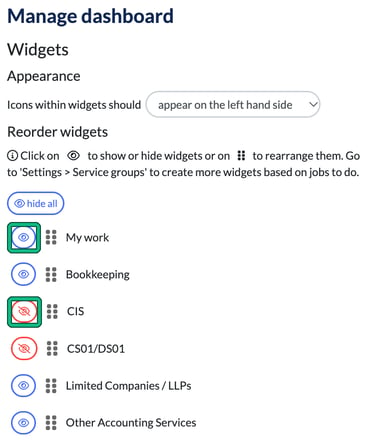
- Under Reorder widgets, select the eye icon beside a widget to show or hide it. A blue eye means the widget is shown and a red crossed-out eye means it’s hidden. You can also use hide all, or drag the handle beside a widget to rearrange it. Your change takes effect straight away.
Widget Wizardry
You can even change the number of days that a widget is looking ahead. For example, your Self Assessment widget could look 7 days ahead, while your Limited Company widget is set to 30 days.
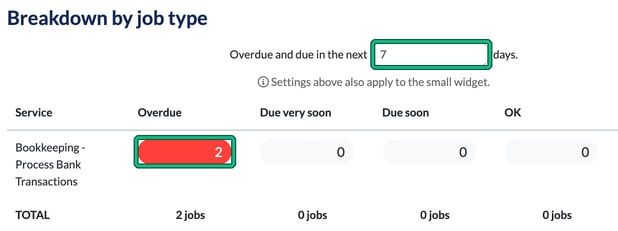
- Select the ? icon on the widget. This opens Breakdown by job type.
- Change the number of days in the field after Overdue and due in the next. As the screen notes, the settings also apply to the small widget.
From this screen, by selecting the RED overdue figure, you can go directly into the jobs that require your immediate attention.
Adding Countdowns
You can get creative with countdowns, adding notes and anything else you can think of that you’d like to have to act as a visual reminder.
A great example could be a Self Assessment countdown, or Month End.
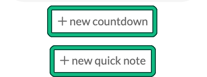
- Select + new countdown, below your countdowns.
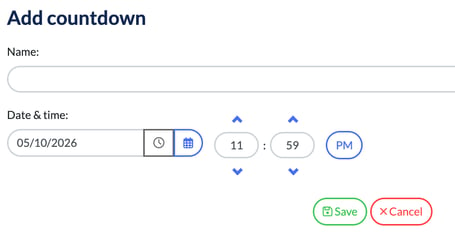
- In Add countdown, enter a Name and the Date & time, then select Save.
Adding Notes
Similarly, for a note to appear on your Dashboard, just select + new quick note, under your countdowns.
Metric Mastermind
You can also have some great metrics running across the bottom of the Dashboard for you and your staff to see.
In Self Assessment times, if you’re aiming to complete 10 a day, you can set this as a metric then update it in the morning, actual vs goal. If you’re off the pace, it’s time to address what’s going on or reshuffle some workloads.
Or even a monetary metric, if you’re trying to set revenue targets.
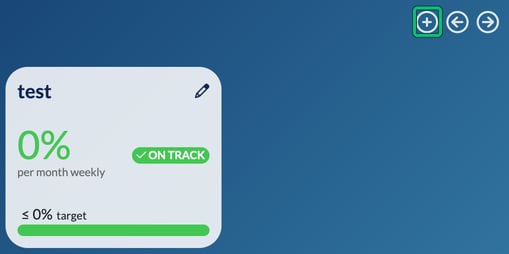
All you need to do is select the + on My metrics to start building your own.
We’ve thought of a lot of options for you to play with, so have fun, get creative and use these as visual prompts for you and your business.