
In this video we take a look at setting up and editing your own letters of engagement templates
Creating and customising Letters of Engagement
We know that tailoring your Letter of Engagement to mirror your firm is extremely important to you. We want your client’s experience to have the look and feel of your company and your core values, so we’ve provided you with the tools to customise your documents and wording.
Remember, if you want to edit these on the fly, you can: just before you send out your LOE / proposal, you can make any last minute amends before sending. So don’t panic if you’re part-way through creating the documentation.
Right, let’s get into it.
Set up your document templates
We provide you with an array of different scopes of services and engagement letters, so we recommend having a look here first, before reinventing the wheel.
- Head into your master Settings and, in the Document content card, select Document templates.
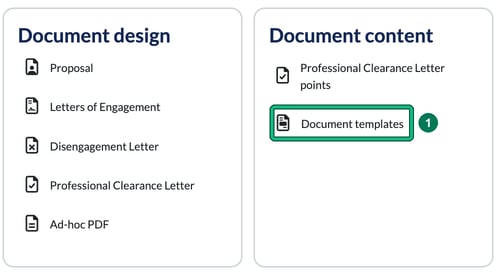
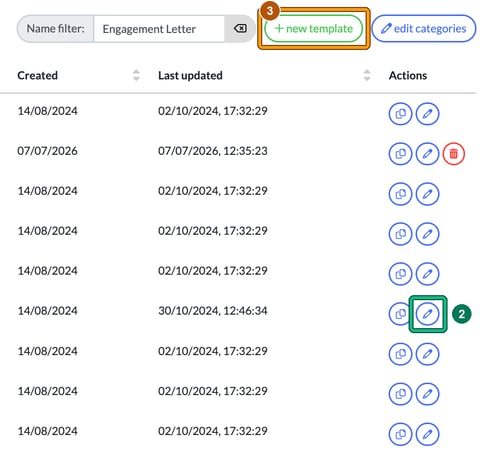
- To change a template, select its pencil (edit) button in the Actions column. This opens Edit template, where you can change the Name: and Category:, edit the wording and add placeholders from the Placeholders panel with insert placeholder, then select Save. Remember that making changes here will be your default moving forwards, so triple check that this is the behaviour that you want.
- With Engager, you could even add in your own existing templates to use. It could be a great time saver for you; however, you’ll have to be careful with the PLACEHOLDERS as they won’t sync with what you’ve used previously. In the same screen, select + new template in the top right-hand corner.
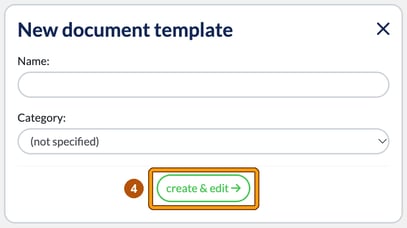
- In New document template, enter a Name:, choose a Category: (for example Letters of Engagement) and select create & edit.
Once you’ve changed the scopes of services and engagements to your liking, let’s show you how to make edits on the fly.
Create a Letter of Engagement for a client
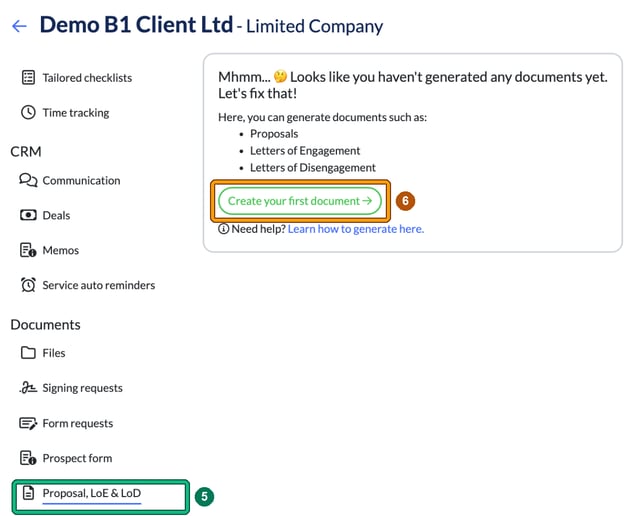
- Locate the client that you want to send a new engagement letter to and then, on the left-hand side under Documents, select Proposal, LoE & LoD.
- Select Create your first document. If the client already has a document, select + Create new in the top right instead.
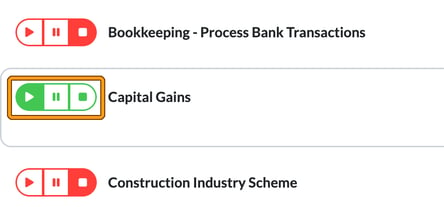
Remember that everything you have enabled on your client account will be generated onto the document, as it’s a live, dynamic service. So if you wonder why, say, your CS01 isn’t showing on the LOE, it will be because you haven’t enabled it in the Services & pricing step of the client’s wizard (Step 5: Services & pricing for a limited company), so turn it on. A green play button means the service is enabled.
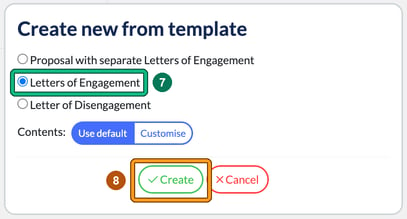
- In Create new from template, choose Letters of Engagement. Leave Contents: set to Use default.
- Now we’ve got that sorted, let’s hit Create. You’ll see “Generating your document...” for a few seconds, then a Disclaimer: select OK.
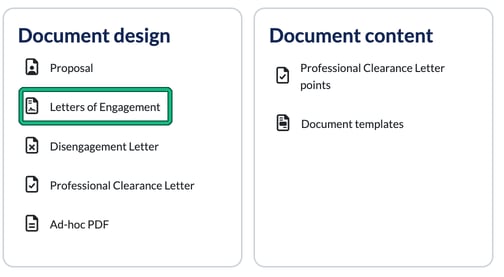
Realised that you’ve not added your logo or the colours aren’t quite on brand? Dive on back into your editing mode, which is Settings > Document design > Letters of Engagement, NOT Document templates. There you can change the Theme, the heading font under General and the Cover page, with a live preview as you go.
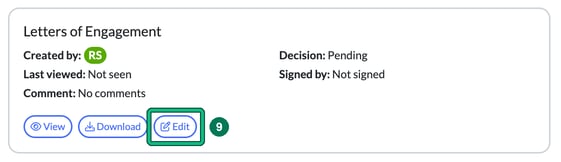
The new document appears on a card with View, Download and Edit. As you can see when you view it, we’ve pulled through the services that we’re going to provide for our client moving forwards.
Make changes for this client only
Perhaps you’ve seen an issue that relates to this client only, in the Scope Of Service, and you need to amend. There’s something not right in the ‘ad hoc and advisory’.
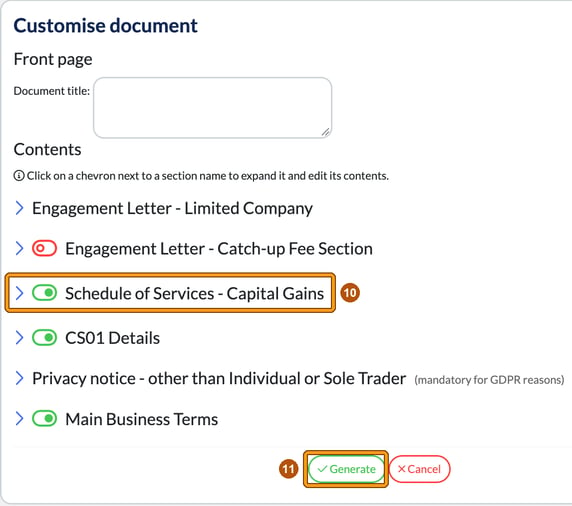
- Don’t panic: simply select Edit on the document card. This opens Customise document.
- You’ll then see what you can tailor to your liking, from the Document title: on the Front page to each section under Contents. Click on the relevant chevron to expand the area in question; this example is Schedule of Services - Capital Gains. The section opens in an editor with insert placeholder and Restore template content. Perhaps switch the section off with its toggle if you’re not providing this as part of your STANDARD service. Sections without a toggle, such as the privacy notice (mandatory for GDPR reasons), always stay in.
- Select Generate.
Send the Letter of Engagement
- When you’re happy, select Finalise & Send. Remember, you’ll still have a chance to review the email before it goes, so you still have time to customise the email. The document itself is finalised as soon as you get past the next step, though: even if you close the email without sending it, the LoE stays at Finalised and the Edit button is no longer available. Make any changes to the document before this point.

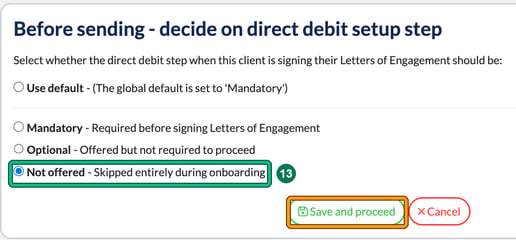
- Before the email opens, Engager asks you to decide on the direct debit setup step for this client: Use default, Mandatory, Optional or Not offered. Choose an option and select Save and proceed. If the global default is Mandatory and the client isn’t linked with Adfin, you’ll need to select Not offered, or link the client with Adfin first using the client form.
- Compose e-mail opens, addressed to the client’s primary contact. We’d recommend tailoring the Body: of the email to warm it up and customise to your prospect. You’re asking for their business, so personalise this and make it bespoke. Use insert placeholder to body to add client details.
- If you’re worried about how the email will appear to the client because of your use of PLACEHOLDERS, we’ve got you covered: simply select the preview (eye) button next to the recipient for a peek at how the email will appear exactly to your client in Email preview.

- When you’re ready, select Send to finish sending through the LOE.