
A client risk assessment records how you assessed a client's anti-money laundering (AML) risk. You answer the questions in a template, and Engager works out an initial risk for each section and an overall risk level.
Engager helps your firm meet its anti-money laundering obligations and keep a record of what you did. Your firm remains responsible for its own AML decisions. For advice on what your firm must do, speak to your supervisory body or read the guidance documents in the firm-wide AML area.
Start a risk assessment
- Open the client and select AML in the left-hand menu.
- Next to Risk assessments for this client, select + new.
- Choose a template from the list.
The Client Risk Assessment opens, showing the template's first section.
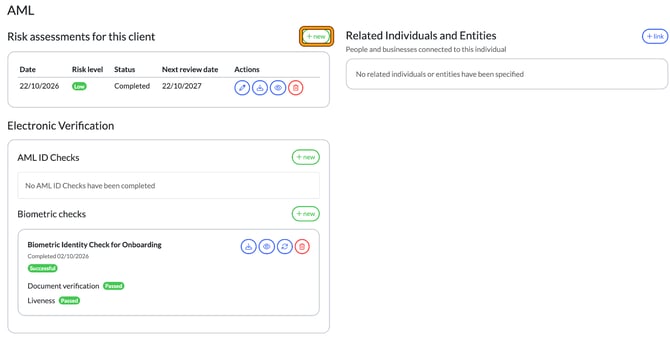
A client can only have one risk assessment in progress at a time. If + new is faded, complete or delete the assessment that's in progress first.
Answer the questions
- For each question, select Yes, No or N/A.
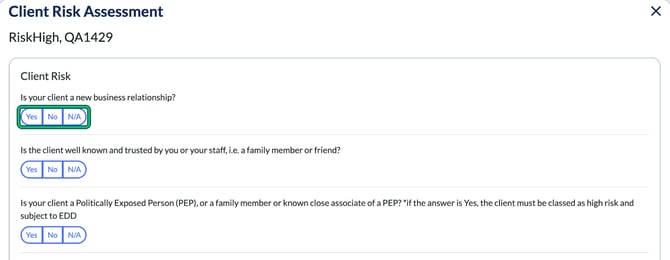
Two questions in the default template say that if the answer is Yes, the client must be classed as high risk and subject to enhanced due diligence (EDD):
- whether the client is a Politically Exposed Person (PEP), or a family member or known close associate of a PEP;
- whether the client is based in, or has dealings with, jurisdictions with weak anti-money laundering controls, such as those on the FATF lists.
If you answer Yes to either, Engager sets that section's Initial risk and the Calculated overall risk level to High, whatever the other answers are.
Check the initial risk and record mitigation
Once you've answered every question in a section that applies, Engager shows that section's Initial risk. To see how it's worked out, select Methodology.
- In Mitigation steps, describe what you've done to reduce the risk in this section.
- If your mitigation changes your view, choose a Revised risk after mitigation. This is optional.
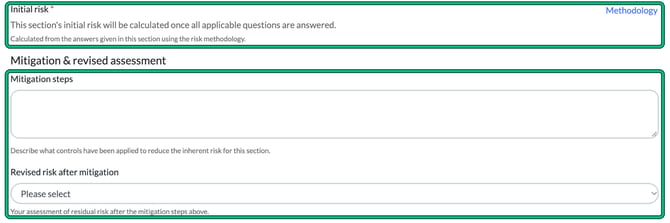
Repeat this for each section.
How the initial risk is calculated
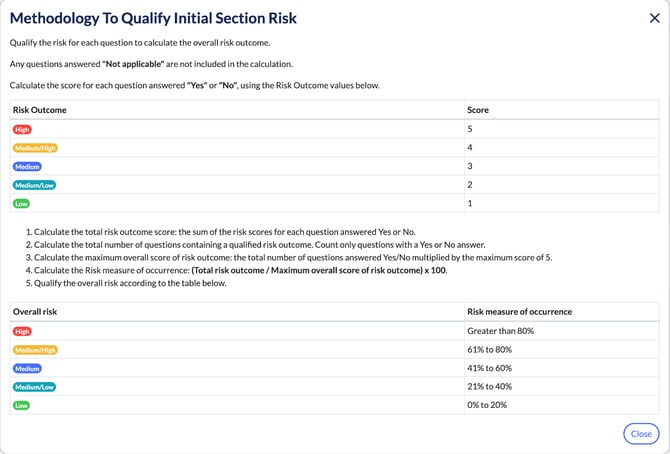
Apart from the PEP and FATF questions above, the initial risk works like this. Each Yes or No answer scores from 5 for High down to 1 for Low. N/A answers aren't counted. Engager adds up the scores, divides by the highest possible score and shows the result as a percentage:
- more than 80%: High;
- 61% to 80%: Medium/High;
- 41% to 60%: Medium;
- 21% to 40%: Medium/Low;
- 0% to 20%: Low.
Write your conclusion
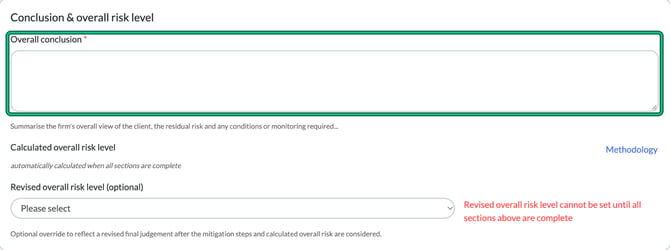
- Under Conclusion & overall risk level, enter your Overall conclusion. This is required.
- Check the Calculated overall risk level. Engager works this out once every section is complete.
- If you've reached a different final view, choose a Revised overall risk level (optional). You can only set this once every section is complete.
Save your work
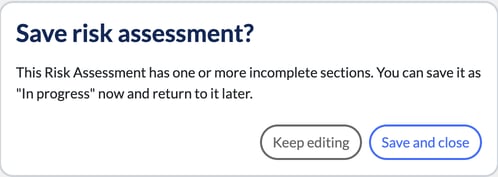
Select Save at the foot of the form. If you select Close before every section is complete, Engager asks whether to save the assessment as In progress. Select Save and close to come back to it later, or Keep editing.
To finish, approve the assessment and set the next review date: How to approve a risk assessment and set the next review date.