
Once every section and the conclusion of a client risk assessment are complete, you can lock it for approval and record when it should next be reviewed. Anyone in your firm can review a risk assessment.
Lock the assessment for approval
- Open the client, select AML in the left-hand menu, then select the pencil button next to the assessment.
- Go to the Approval section at the foot of the form.
- Tick Tick to confirm the Risk Assessment is complete and ready for approval.
The assessment is now locked for editing, and the approval options become available.
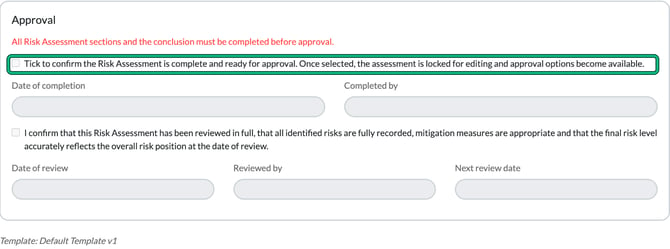
If you see "All Risk Assessment sections and the conclusion must be completed before approval", go back and finish the sections or the Overall conclusion first.
Record the completion and review
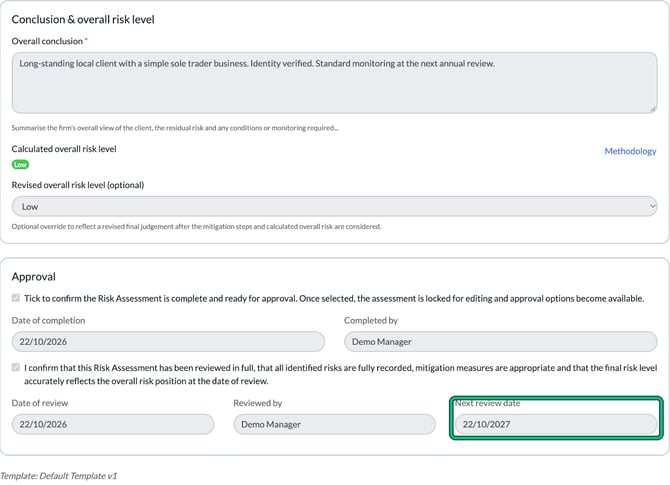
- Fill in Date of completion and Completed by.
- Tick the review confirmation. It confirms the assessment has been reviewed in full, the risks and mitigation are recorded and the final risk level is right.
- Fill in Date of review and Reviewed by.
- Set the Next review date. Engager doesn't send a reminder when it's due, so keep an eye on the Next review date column.
- Select Save.
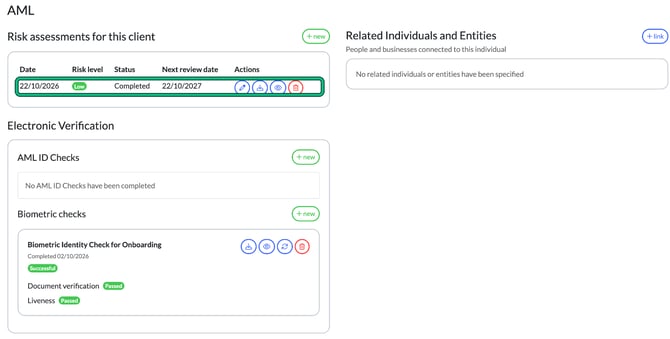
The client's list of risk assessments now shows the date, risk level, status and next review date.
View or download an assessment
In the client's list of risk assessments, select the eye button to view an assessment, or the download button to save a copy.