
This guide will walk you through the steps to add images with hyperlinks to your message and document templates in Engager. This feature is useful for incorporating branded visuals, call-to-action images, and other linked content directly into your documents and emails.
Adding Linked Images to Message Templates
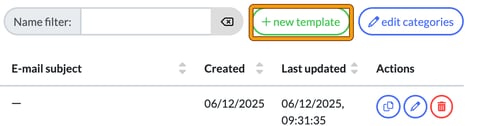
- Navigate to Message Templates: go to Settings > Communication > Message templates. Select + new template to create a new one, or use the copy icon under Actions to copy an existing template and modify it. For a new template, fill in New message template and select create & edit to open the editor.
- Insert an Image: in the template editor toolbar, select the Image button.

On the General tab, tick Upload: and use Choose file to select the image you wish to add, or tick URL: and enter the image's web address. Select OK. The image will be uploaded directly into the template editor.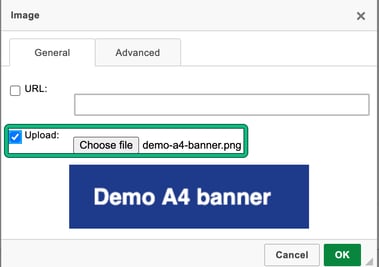
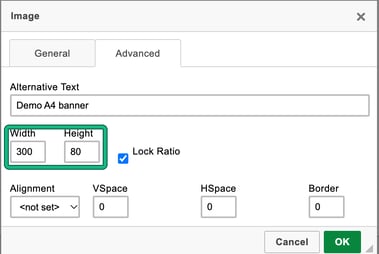
- Resize the Image (Optional): double-click the inserted image to open the image properties, then select the Advanced tab. Here, you can adjust:
- Width and Height to resize the image (tick Lock Ratio to keep its shape).
- Alignment, VSpace and HSpace for layout adjustments.
- Alternative Text, to describe the image.
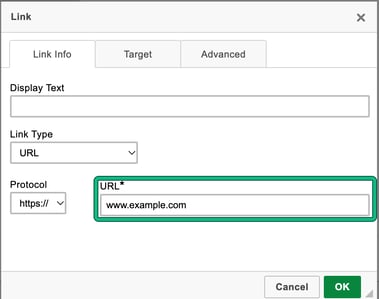
- Add a Hyperlink to the Image: select the image by clicking on it, then select the Link button in the toolbar. On Link Info, leave Link Type as URL, check the Protocol, and enter the address you want users to be directed to in URL. Select OK to save the link, then Save the template.
- Preview Your Template:
- For emails, draft an email using the template to preview how it will look and test the link. In a client's Communication page, select compose e-mail and choose your template in Template:.
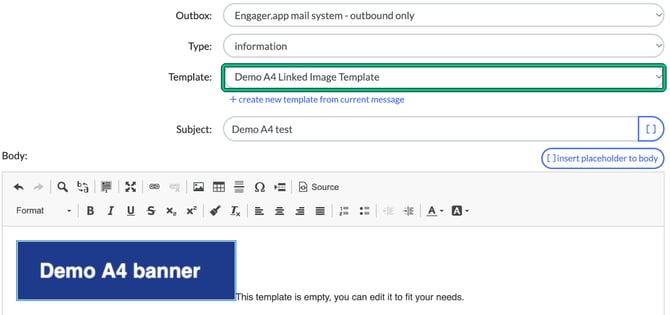
- For documents, create a PDF to ensure the image and link display correctly.
- For emails, draft an email using the template to preview how it will look and test the link. In a client's Communication page, select compose e-mail and choose your template in Template:.
Adding Linked Images to Document Templates
The steps for adding images with links to Document Templates are similar:
- Navigate to Document Templates: go to Settings > Document content > Document templates. Select + new template to create a new one, or choose to copy an existing template to modify it.
- Follow the Same Steps as for Message Templates:
- Insert an image with the Image button.
- Resize the image (if needed) by double-clicking it and adjusting the properties on the Advanced tab.
- Add a hyperlink by selecting the image and selecting the Link button, then entering the desired URL.
Since the editor is the same, these steps work consistently for both Message Templates and Document Templates.
Best Practices
- Use Alt Text: add alternative text to images in Alternative Text to improve accessibility and ensure users understand the content if images don’t display automatically.
- Avoid Excessive Images in Emails: too many images can trigger spam filters, so keep your image usage balanced.
- Keep Image Sizes Below 2MB: this ensures quick loading times and smooth generation of documents or emails.
Troubleshooting Tips
- Link Not Working? Double-check the URL for accuracy.
- Image Not Displaying? Ensure the image size is within the 2MB limit and is in an accepted format (for example, JPEG or PNG).
- Positioning Issues? Adjust alignment and spacing in the image properties as needed.
By following these steps, you can easily add linked images to your templates in Engager, enhancing the appearance and functionality of your communications.