
Firstly, what are Documents and when should we use them. They are NOT your email templates to clients, they’re more official articles like Schedules of Service, Engagement Letters etc and your Business Terms.
If you’re looking for email communications, head to 8 of 10: Enhance Communication with Custom Email Templates.
We’ve created an array of In-Built templates for everybody to use, however you may wish to tailor these or create from scratch.
Use your Existing Documentation or LOE in Engager
So perhaps you want to use your current documentation/LOE within Engager.
- Head into your master Settings and, in the Document content card, select Document templates. Your own templates and our built-in ones are in the same list.
- Select + new template. In New document template, enter a Name:, choose a Category: (for example Schedule of Services or Letters of Engagement) and select create & edit. From here you can start to build out your own documents, Schedule of services etc and add in your placeholders for future use with insert placeholder. You can simply paste your preferred wording into this new document and use moving forwards as your preferred documents / schedule of service. Select Save when you’re done.
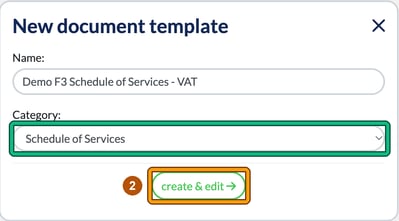
- PLEASE NOTE: you will now need to activate and assign these for you to use in Engager. This is more for your specific Schedule of Services. Go to Settings > Jobs > Services, locate the service (for example VAT) and select the pencil (edit service) button in the Actions column. In Edit service, change the Schedule of Services template for LoE: drop-down to your new Schedule of Services and select Save. The selected template will be added to Letters of Engagement when this service is enabled for a client. The same field is in New service if you’re creating a new Service.

With Letter of Engagement, you can edit our existing documents to better suit your practice. In Document templates, locate the template that you’d like to tailor and select the pencil (edit) button in the Actions column. Built-in templates can be duplicated and edited; only your own templates can be deleted.
Using your new documents / LOEs in Engager
Now that you’ve tailored the LOE or Created a brand new LOE in the system, let’s take a look at how you ensure you’re sending these when sending out LOE and proposals.
Remember that the Schedule of Services in a client’s LOE comes from the Schedule of Services template for LoE: setting on each service you’ve enabled for them (step 3).
- Head to your client in question and, on the left-hand side under Documents, select Proposal, LoE & LoD. Select + Create new (or Create your first document). In Create new from template, choose Letters of Engagement and set Contents: to Customise.
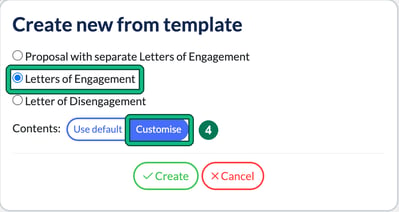
- Select Create. This opens Customise document, where you can change the Document title: on the Front page and each section under Contents. Switch a section off with its toggle if you don’t want it in this letter, or select the chevron to expand it and edit its wording, with insert placeholder and Restore template content. Sections without a toggle, such as the privacy notice (mandatory for GDPR reasons), always stay in.
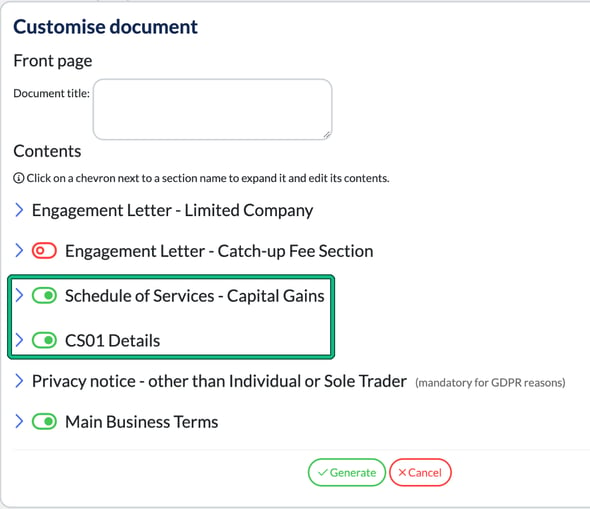
- Select Generate.
Hope this helps!