Documents e-signed in Engager, as with other practice management tools, take the approach of the client signing off the whole document by typing their name. They do this in a Sign document panel to the right of the document they're viewing.
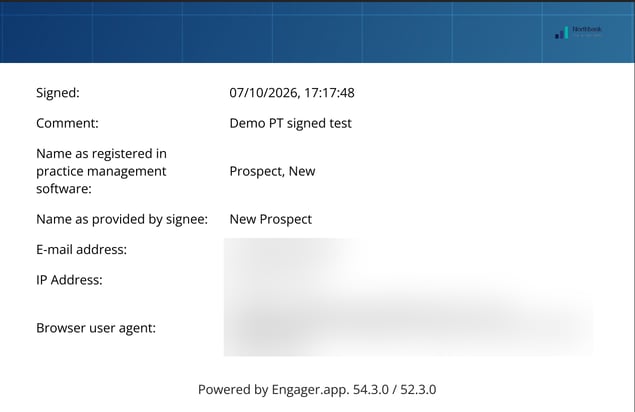
Once signed, the document is assigned a front cover. This cover sets out the details that support the electronic signature: who signed, when, and which document they signed.
The Engager e-sign tool does not allow you to state where the signature should go on the document or allow multiple signature locations like best in class tools often do.
Clients can only sign documents using the Engager e-signing tool if they have a Client Portal.
How a document gets to your client
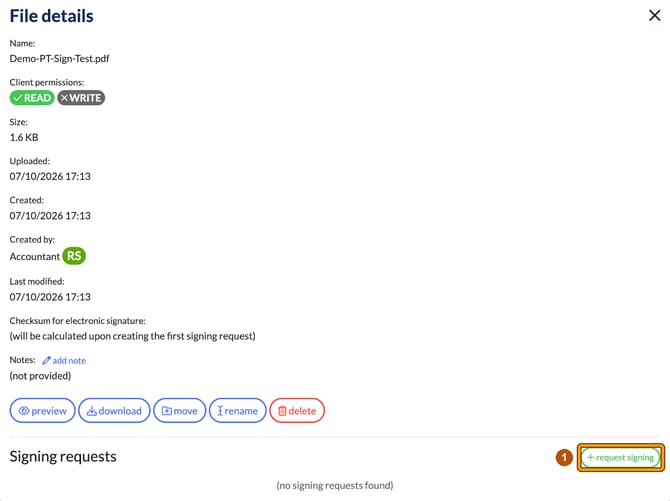
- In the client's Files, open the folder and select the document's name to open File details. Under Signing requests, select + request signing.
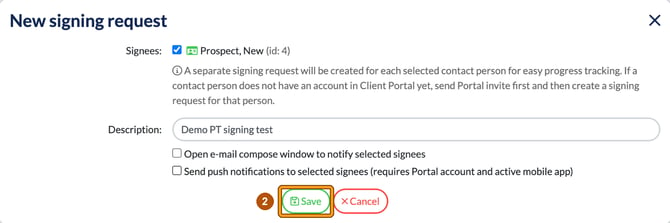
- In New signing request, tick the Signees, add a Description and select Save. If a contact person doesn't have a Client Portal account yet, send them a Portal invite first, then create the signing request for them.
What your client sees
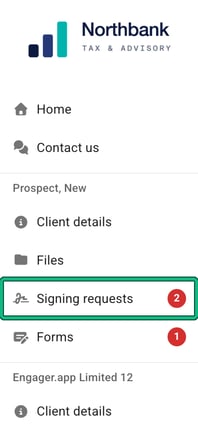
- In the Client Portal, each client the contact is linked to has its own Signing requests item, next to Client details, Files and Forms. A red badge shows how many requests are waiting.
- Each request is a card showing the document name, a Pending status, when it was requested and its description. Your client selects SIGN OR REJECT.
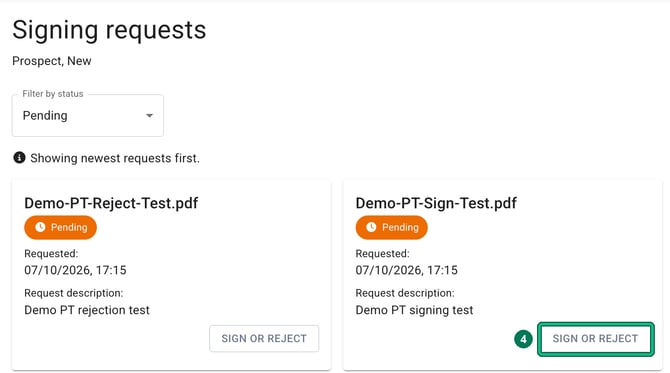
- The Sign document window opens, with the document on the left and the signing panel on the right.
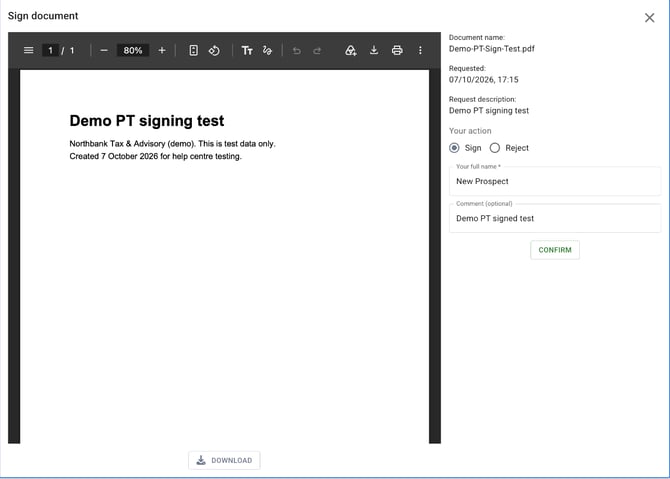
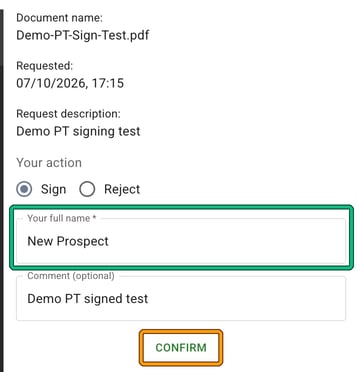
- Under Your action, your client chooses Sign. They type their name in Your full name *, adds a Comment (optional) if they want to, and selects CONFIRM. There's no drawing or placing a signature; typing their name is the signature.
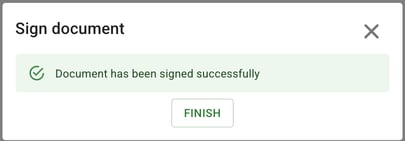
- They see Document has been signed successfully and select FINISH.
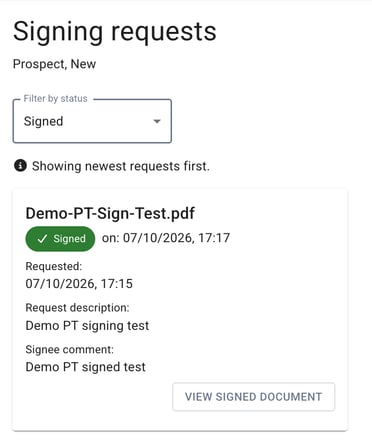
The card now shows a green Signed status with the date and time, the client's comment and VIEW SIGNED DOCUMENT.
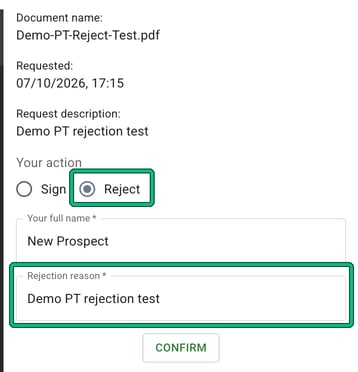
If your client chooses Reject instead, the comment box is replaced by Rejection reason *, which they must fill in before selecting CONFIRM.
What the signed document looks like
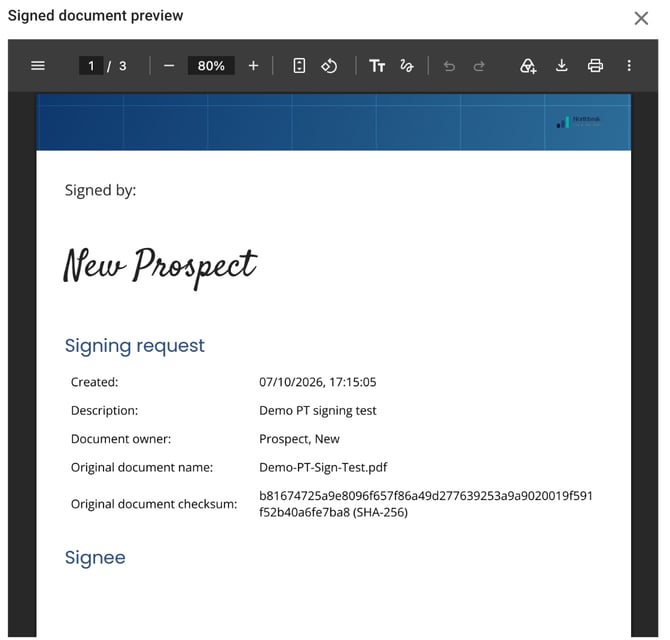
The signed document opens as a Signed document preview. The front cover is on your practice's letterhead and comes before the original document. It can run to two pages.
The first page shows Signed by: with the typed name in a script font, then the Signing request details: Created, Description, Document owner, Original document name and Original document checksum (SHA-256), which identifies the exact file that was signed.
The Signee details follow (here, on the second page): Signed (date and time), Comment, Name as registered in practice management software, Name as provided by signee, E-mail address, IP Address and Browser user agent.