
You can send documents straight from TaxCalc into a client's folders in Engager, then request e-signature or notify the client exactly as you would for any other document.
Checking which clients are linked
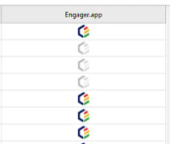
In TaxCalc, a client that is linked to Engager shows a coloured, selectable Engager logo. Clicking the icon opens a browser window and loads that client's info page in Engager.
Sending documents to Engager
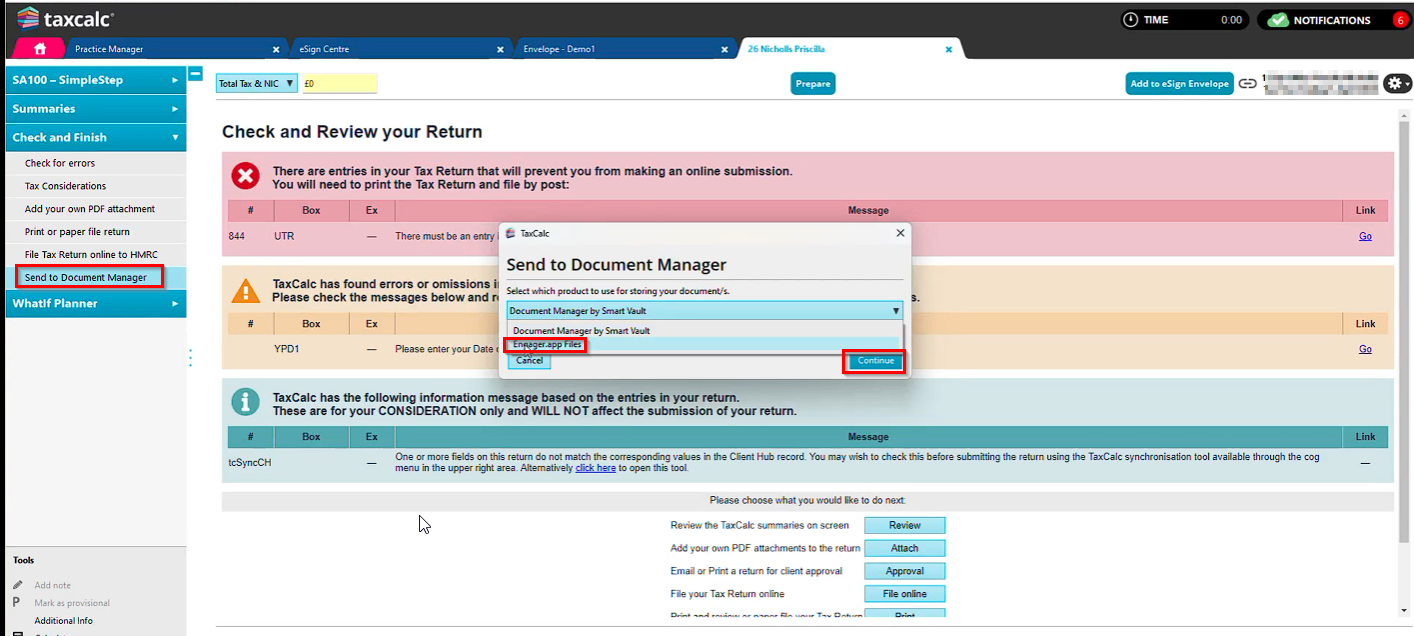
- Open the tax return or annual accounts module in TaxCalc and go to Check and finish.
- Select Send to Document Manager.
- In the drop-down, select Engager.app and continue.
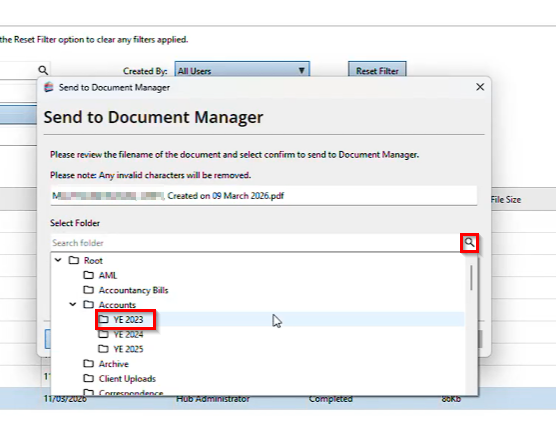
- Tick the documents you want to send.
- Choose the Engager folder those documents should be saved into for this client.
Confirming the transfer
Once the documents have been sent successfully you will see a confirmation box.
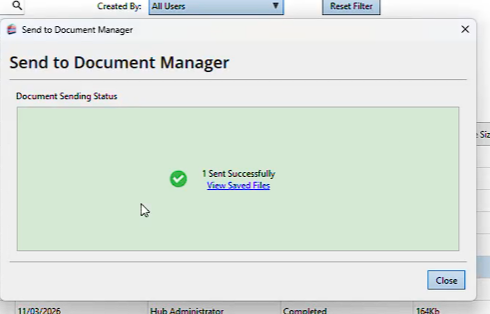
Your documents will then be in that client's folders in Engager, ready to send for e-signature or to notify the client as you normally would.