
We often get questions about whether a client has actually signed an engagement letter or approved a signing request.
We get it, it's tricky on first glance as you can't quite see the ESIG over the document.
Check a signing request
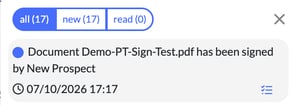
- You'll receive a Notification that your client has signed. It appears in the bell at the top of the screen, for example "Document Demo-PT-Sign-Test.pdf has been signed by New Prospect", with the date and time. A rejection creates a notification too. Who receives these is set in Settings > Notifications, on Document has been signed or rejected.
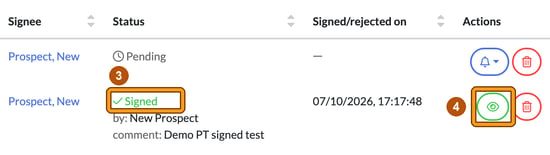
- However, if you want to check that it has indeed been signed, head to the relevant client and select Documents > Signing requests. Each request shows its Signee, its Status and the Signed/rejected on date. A request that hasn't been signed yet shows Pending, with no date.
- Once signed, there will be a green tick and Signed in the Status column, followed by "by:" with the signee's name, and their comment if they left one. The Signed/rejected on column shows the date and time they signed.
- You can also VIEW the document AND signature, by selecting the green 'eye symbol' (preview signed document) in the Actions column.
Please remember it's an ESIGNATURE, so you're not looking for anything particularly bespoke in terms of signature. The signature is the name your client typed, shown in a script font on the signed document's cover page.