
There may be times when you need to export a client's email correspondence. Perhaps this is required as part of a handover to a new accountant, or perhaps Data Protection SAR requests.
At present, there is not a way to do this within the Engager platform, and so as a workaround, we'd recommend doing this in your native email provider's software.
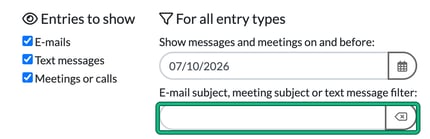
You can search emails in Engager, which can be done in the client's record. Go to the client's CRM > Communication. Under Entries to show, tick E-mails, then type in E-mail subject, meeting subject or text message filter:. The search looks at the email subject. You can also use Show messages and meetings on and before: to narrow it down by date.
Outlook / M365
To download an email from Outlook, you can:
- Open Outlook.
- Select the email(s) you want to download.
- Click File in the Outlook menu.
- Select Save As.
- Choose a folder, enter the name of your file, and select a file format.
- Click Save.
You can also download emails from Outlook by exporting to a file. Select Open & Export, then Import/Export, then Export to file. Choose Outlook Data File (.pst), select the folder to download from, and click Finish.
Gmail
To download an email from Gmail, you can:
- Download an individual email:
- Open the email in Gmail.
- Click More.
- Click Download message.
- Save an email as a PDF:
- Open the email.
- Click the Print icon.
- Select Save as PDF in the destination window.
- Export multiple emails using Google Takeout:
- Log in to Gmail and go to Google Takeout.
- Select Mail from the list of Google products.
- Choose what you want to export.
- Select your destination.
- Choose if you want the export to repeat automatically.
- Choose the file format and maximum file size.
- Click Create export.
- Use the Gmail Export plugin:
- Install the Gmail export plugin.
- Search for emails in your Gmail.
- Click the Export button.
- Save emails to Google Drive:
- Open an email in Gmail.
- Click Save to Google Drive.
You can also use Gmail offline by going to Gmail offline settings, checking Enable offline mail, choosing your settings, and clicking Save changes.