
The Engager x FreeAgent integration is designed to ensure your practice’s data stays in sync, helping you streamline workflows and keep everything up to date.
🔗 Two-Way Integration
Our integration with FreeAgent is fully two-way, meaning data flows in both directions:
✅ From Engager to FreeAgent:
When you make changes within Engager, those updates are instantly reflected in your FreeAgent account. This includes updates to client details, contacts, and relevant fields that you manage within Engager.
✅ From FreeAgent to Engager:
When changes are made within FreeAgent, such as updates to client information, these updates are pulled into Engager automatically. Due to the technology used by FreeAgent’s API, this synchronisation can take up to one hour to complete. So, please allow a short delay for these updates to appear within Engager.
📊 Practice Dashboard Integration
Engager also integrates directly with FreeAgent’s Practice Dashboard to pull in key financial data for your clients:
- Profit and Loss: keep an eye on your clients’ profitability.
- Balance Sheet: stay up to date on their assets and liabilities.
- VAT Returns: monitor VAT obligations and status.
This data is visible within Engager, giving you a holistic view of your clients’ financial health, right where you need it.
⚙️ How to Set Up the Integration
Authorisation is per user: each member of your team who wants Engager to communicate with FreeAgent authorises it from their own login. To set up the Engager x FreeAgent integration:
- Navigate to Settings > Integrations > FreeAgent.
- You’ll see a list of your users under Users connected to FreeAgent, each with their status (authorised or not authorised). Until you authorise, the page tells you the feature is currently disabled for your user.
- Click authorise within the Authorisation section. Engager doesn’t store your FreeAgent credentials, only access tokens that can be revoked in your FreeAgent account.
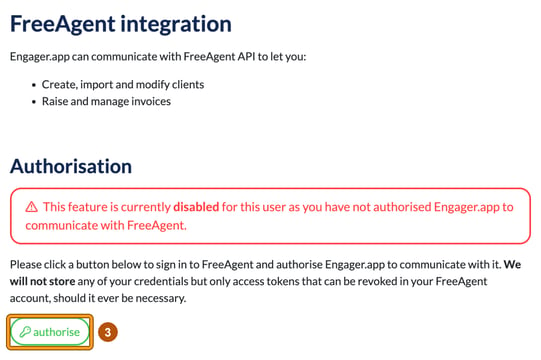
- You’ll be prompted to sign in to FreeAgent and authorise Engager to communicate with your FreeAgent account.
- Once authorised, configure your Own client subdomain under Details: create your own company as a client in FreeAgent and enter its subdomain in Subdomain: (the part before .freeagent.com). Then decide how you’d like individual and sole trader client names to be displayed in FreeAgent: choose a Format: (for example, “Last name, Title First and Middle names”), tick add trading name suffix where applicable if you want it, check the Sample: and select save.
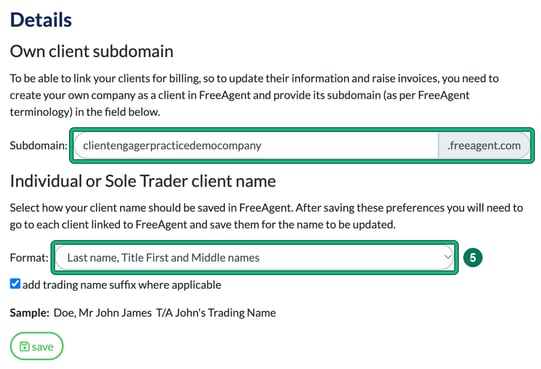
If you change the name format later, go to each client linked to FreeAgent and save them for the name to be updated.
🚀 Key Takeaways
- Updates in Engager → FreeAgent: Instant.
- Updates in FreeAgent → Engager: Up to 1 hour delay (due to FreeAgent’s technology limitations).
- Financial data from the Practice Dashboard is visible in Engager to support your advisory and compliance services.
- Each user authorises FreeAgent separately.
If you have any questions about this integration or need help setting it up, please don’t hesitate to reach out to our support team at contact@engager.app.