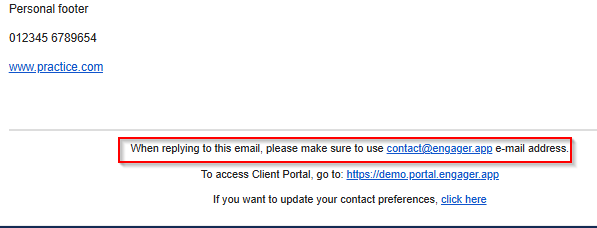
When you start to use Engager, we encourage you to review your personal footer and company footer. We want your communications to mirror the emails that you're already sending, so make sure that you mirror what your clients have already been receiving, via your Microsoft 365 or Gmail.
Set up your footers
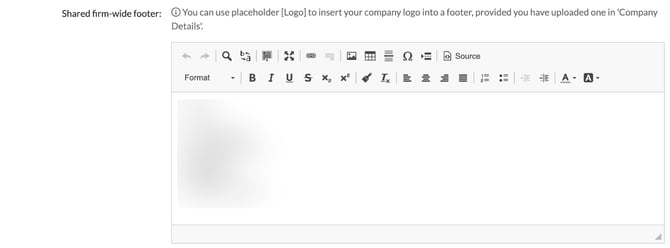
- For the company footer, go to Settings > Communication > Practice email and fill in Shared firm-wide footer:. You can use the placeholder [Logo] to insert your company logo, provided you have uploaded one in 'Company Details'.
- For your personal footer, go to Settings > Communication > User email. Under Footer, choose Footer to use: personal footer, practice footer or none, then write your Personal footer:. You can start from copy from practice footer. If the personal footer is selected but it is empty, the practice footer is used instead.
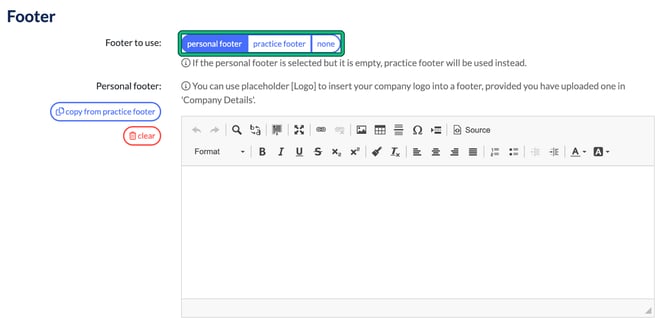
You can also change Footer to use: for a single message in Compose e-mail.
Set up your outbox
You should also set up your Outbox too. Please note that the Engager platform currently sends your automated emails from a SHARED mailbox only. Sending automated emails from personal inboxes is planned but not available yet. See Automated Emails, using company or personal email addresses to send.
We also want to make sure that your outboxes are configured correctly. So make sure you use your actual personal or shared outbox, rather than Engager.app mail system - outbound only.
- In Settings > Communication > Practice email, under General settings, set Default outbox for new threads: to your Microsoft 365 (Outlook) or Gmail shared or personal company account. Make sure you've connected to Microsoft 365 or Gmail before you select their outbox. For existing threads, the outbox is selected based on the message source.
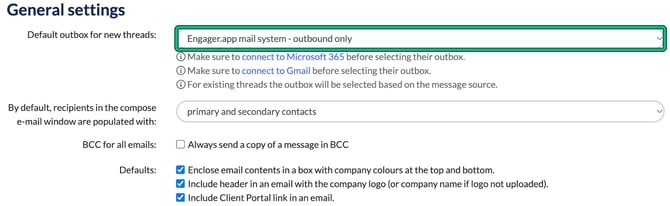
- You can also pick the outbox for a single message with Outbox: in Compose e-mail.
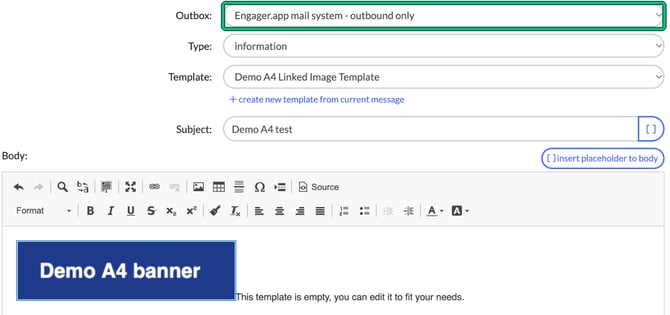
Using the Engager.app mail system
It's fine to use the Engager.app mail system, however best practice will be to use your company or personal outbox.
If you use the Engager.app mail system, there's a higher percentage chance that your email will be intercepted by those pesky spam / junk filters and your clients might not see something important.
If you do use the Engager.app mail system, please note that it will recommend that the end client responds back to your MAIN POINT OF CONTACT, as below. These emails will also not appear in your SENT folders for Gmail / Microsoft 365.