
Engager’s Document Designer feature empowers practice owners to completely customise the appearance of any document generated within the platform. This includes Proposals, Letters of Engagement, Letters of Disengagement, Professional Clearance letters, and any ad hoc PDFs.
A short video showcasing Document Designer:
Accessing the Document Designer
The Document Designer is available across all subscription levels at no extra cost. However, please ensure you have admin rights to make changes.
Each document type has its own design.
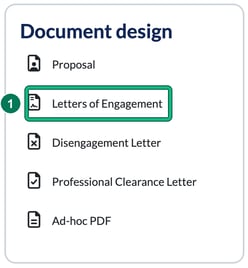
- Go to Settings and, in the Document design card, select the document type you want to design: Proposal, Letters of Engagement, Disengagement Letter, Professional Clearance Letter or Ad-hoc PDF.
- Under Theme, Base template: shows the design you’re starting from. You can start your designs from scratch or use one of the six built-in templates: select change base template to open Browse templates (Original, Digital, Traditional, Futuristic, Friendly and Modern) and select choose on the one you want. A new base template overwrites the current design for that type of document, but nothing is saved until you select Save.
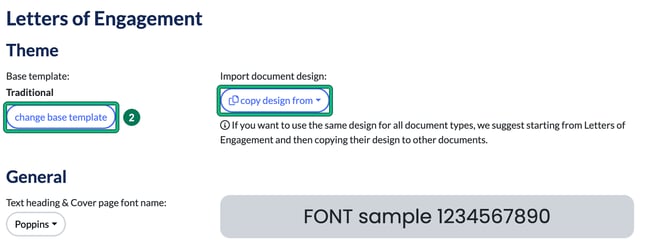
If you want to use the same design for all document types, start from Letters of Engagement, then use Import document design: copy design from on each of the other document types.
What Can You Customise?
Document Designer gives you full control over every visual element of your documents, allowing you to:
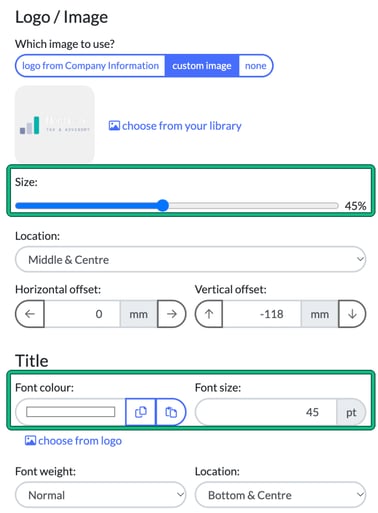
- Upload custom imagery and logos (Background layers and Logo / Image, using choose from your library)
- Adjust logo sizes with the Size: slider
- Customise fonts (type, size, colour and weight)
- Modify margins to fit your design preferences
- Select content to be displayed on covers, section covers, headers, and footers
A live preview on the right shows your changes as you go. Select Save at the bottom of the page when you’re happy.
Example of the cover page settings, with the logo size and title font options highlighted:
Supported Document Types
Document Designer allows customisation for the following types of documents:
- Proposals
- Letters of Engagement
- Letters of Disengagement
- Professional Clearance letters
- Ad hoc PDFs
These custom designs will automatically be applied when generating PDF documents within the Client Record.
Sharing and Collaboration
Once a document design is finalised, it is automatically shared across your entire practice. Team members do not need to manually share designs, ensuring consistency across all documents generated by your firm.
Exporting and Sharing Documents
Once a document is ready, you can:
- Export it as a PDF
- Share it directly with your client through email, any preferred communication method, or via the Engager client portal for a seamless experience.
Common Troubleshooting
If you experience any issues or need help using the Document Designer, feel free to contact our support team by emailing contact@engager.app.
If you’re looking for Ad Hoc Documents and PDFs, read Ad Hoc (adhoc) Documents and PDFs.