You create e-signing email templates in Settings > Communication > Message templates, using the eSigning Request category. Watch the video, or follow the written steps below it.
Create an e-signing email template
- Go to Settings > Communication > Message templates and select new template.

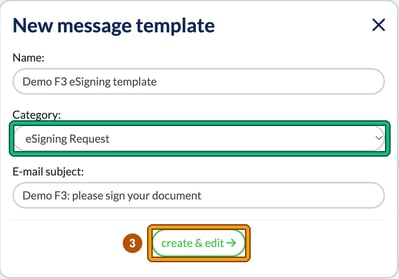
- In New message template, enter a Name, set Category to eSigning Request and enter the E-mail subject.
- Select create & edit. This opens Edit template.
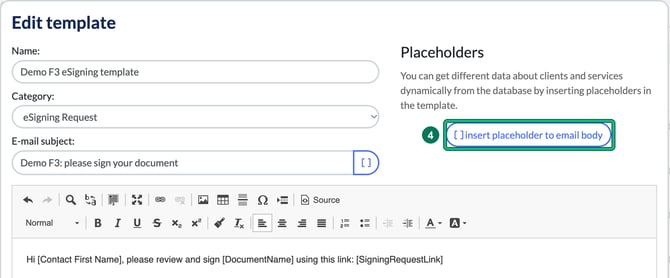
- Write your email in the body. To add the document name and the signing link, select insert placeholder to email body. Under Only for Signing Request email you’ll find [DocumentName] (the name of the document to sign) and [SigningRequestLink] (a direct link to the signing request). General placeholders, such as [Contact First Name], work too.

- Select Save. The template is listed in Message templates with the category eSigning Request.
Use the template on a signing request
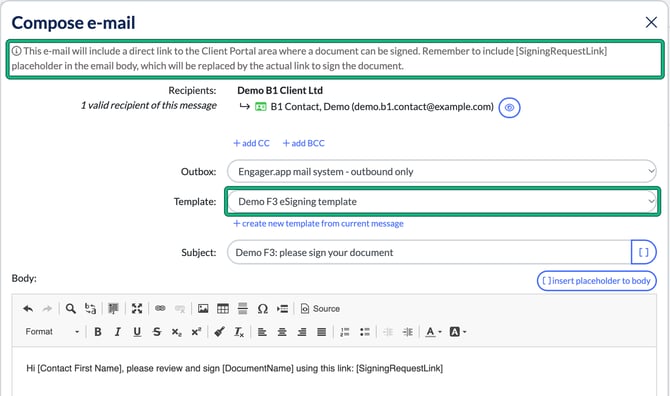
When you email a signee about a signing request (by ticking Open e-mail compose window to notify selected signees when you create the request, or with the bell button and Notify by e-mail on an existing one), Compose e-mail opens with the built-in Document awaits signing template. Choose your own template from the Template list and its subject and body load in.
Always keep [SigningRequestLink] in the body. Compose e-mail reminds you that the placeholder is replaced by the actual link to sign the document.