
If your company mailbox isn't with Microsoft 365 or Gmail, you can still send emails from Engager through your own domain by entering your provider's outgoing email server (SMTP) details.
These settings are in Settings > Communication > Practice email. Practice e-mail settings apply to all users in the system.
Enter your SMTP details
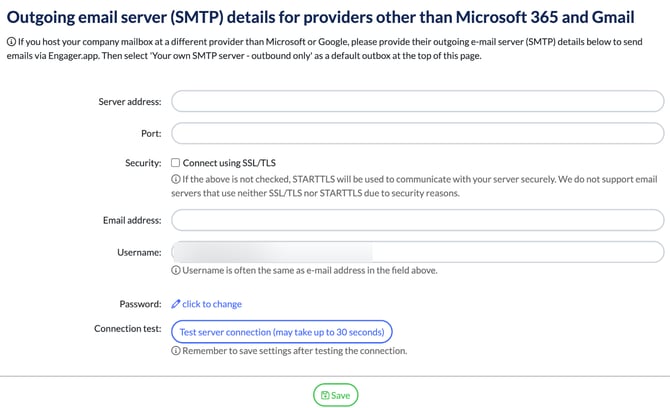
- Go to Settings > Communication > Practice email and scroll down to Outgoing email server (SMTP) details for providers other than Microsoft 365 and Gmail.
- Enter your provider's Server address: and Port:.
- Under Security:, tick Connect using SSL/TLS if your server uses it. If it's not ticked, STARTTLS is used instead. Engager doesn't support email servers that use neither SSL/TLS nor STARTTLS.
- Enter the Email address: you send from, and your Username:. The username is often the same as the email address.
- Next to Password:, select click to change and enter your password.
- Next to Connection test:, select Test server connection (may take up to 30 seconds).
- Select Save. Remember to save after testing the connection.
Send from your own server
- At the top of the same page, under General settings, set Default outbox for new threads: to Your own SMTP server - outbound only, then select Save.
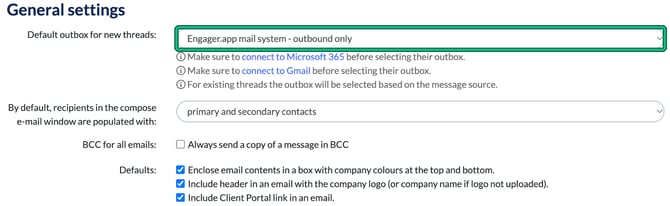
This applies to new threads. For existing threads, the outbox is selected based on the message source.
As the name says, Your own SMTP server - outbound only is for sending. If you use Microsoft 365 or Gmail, connect your mailbox under Settings > Integrations instead.