
✅ Tracking Completed Jobs with the Jobs Report
The Jobs board in Engager acts as your dynamic to-do list, and there’s nothing more satisfying than watching those job cards disappear as you work through your deadlines.
At the end of a busy month, your board should be completely clear. But where do those completed jobs go? Were they done on time? Who did what?
📊 Meet the Jobs Report
To answer all those questions, we've got you covered with a powerful report that lives right on the Jobs page.
🔍 How to Access the Completed Jobs Report
- Head to the Jobs page from your top bar.
- Select reports in the toolbar at the top right.
- Choose Jobs completed in a given period.
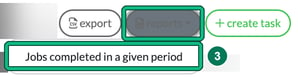
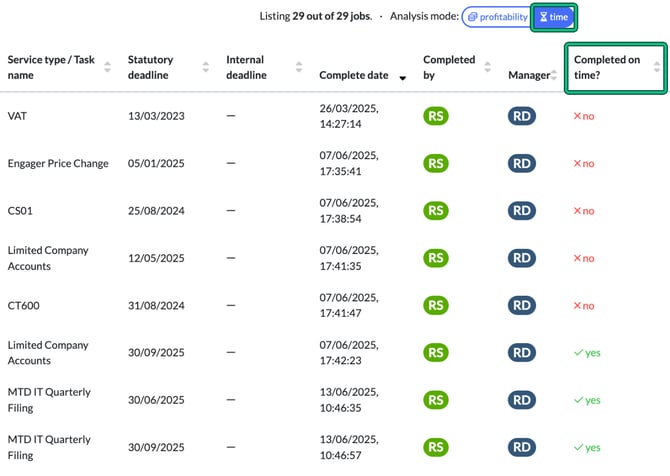
This opens the Completed jobs report, a detailed view of all your completed work. By default the Completed date range covers last month, so change the End date if you want to include anything completed this month.

💡 What You Can Do with the Report
From this report, you can:
- Review all completed jobs in a specific timeframe
- Check whether jobs were completed on time: switch Analysis mode: to time to see the Completed on time? column, or use the Completed on time: filter
- Track team performance with the Completed by: and Manager: filters, and compare budgeted time with time spent
- Spot any trends or training needs
The profitability analysis mode shows fees, cost of time and profit or loss for each job instead.
📁 Need to Share or Analyse Further?
You can export the data for deeper reporting or internal reviews: under Export:, select CSV.

Stay on top of your deadlines, keep your team sharp, and never lose sight of completed work again!
Don't know how to mark a Job as Completed?
✅ How to Mark a Job as Complete
To mark a job as complete, follow these steps:
- Click on a white space on the Job card to open it.
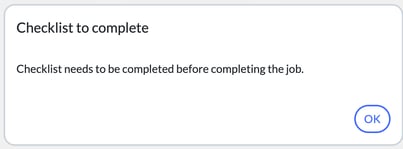
- Inside the Job card, complete any Checklist that is present. You don't have to complete every phase first, but the checklist must be finished: if it isn't, you'll see Checklist to complete, and selecting OK opens the checklist for you.
- Once everything is ticked off, select complete job at the top right to mark the Job as complete.
If you see "Could not determine service frequency", the job's service has no frequency set, so the job can't be completed. Set the service's frequency in Settings > Jobs > Services first.
🔄 What Happens Next?
- The Job will disappear from your board and move into the Completed Jobs Report.
- A new Job will automatically regenerate for the next period (e.g. next year’s Year-End Accounts or the next quarter’s VAT Return).
- Engager will carry forward your Internal Deadlines and Staff allocations (for Phases), so you're ready to go.