
We have a wonderfully helpful link with Companies House, via something called an API connection. This will cross reference your client’s data in Engager against the Companies House database.
If there are any differences, it will suggest you update these the following day. We will not override your account automatically.
When you check your Engager account in the morning, review your Notifications every morning as best practice.
Review and accept a change
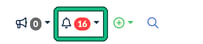
- Select the bell in the top bar to open your notifications. The number shows how many you have.
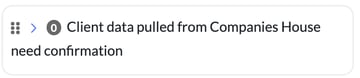
- At the foot of the notifications panel, select show grouped summary to open the Notification summary page, then look for the group Client data pulled from Companies House need confirmation. The items that need attention are listed in Settings > Client data > Companies House updates.
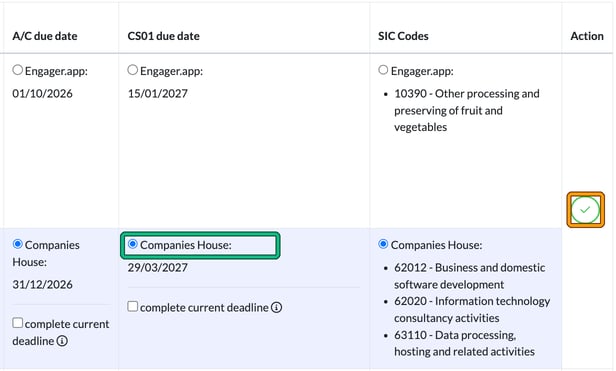
- In the Sync choices table you can see the client and each area that has a change or discrepancy, such as the registered office address, reference dates, due dates and SIC codes. You can narrow the list with the Manager, Director and Client name / company number filters. For each field, review the Engager.app: value against the Companies House: value and choose the one you want to keep.
- To accept the change, there’s a handy green tick for you to use in the Action column.
Please note: we will never update your data automatically. We would never override your details without consent, hence this feature.
If you confirm the Engager data as correct, the discrepancy is ignored and you will no longer receive daily Companies House notifications about it unless the data changes.
The View: filter shows Current discrepancies or Ignored items.
Find Companies House updates in Settings
If you ever wonder why certain data isn’t in your Engager account, it’s likely that we’ve already recommended the change and you’ve simply missed the notification to go and check.
So to help with this, you can always go to Settings > Client data > Companies House updates.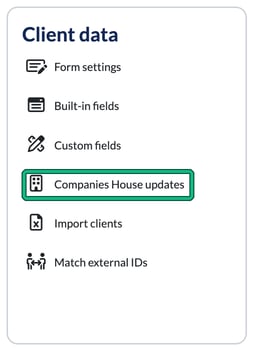
What data do we check and pull through into your account
- SIC code
- Company number
- Business start date
- Registered office address (and trading address if marked as equal)
- Due date for Limited Company Accounts or LLP Accounts, depending on the client type
- Due date for CS01
- Accounts reference date and CS01 reference date
I’ve just imported my data and the sync isn’t working
This can happen if you’ve not included the company number in your import document. If this is missing, the system check won’t know to cross reference your client against the Companies House record.
Clients that can’t be matched are listed under Sync errors on the Companies House updates page, with an error description such as Client not found in Companies House.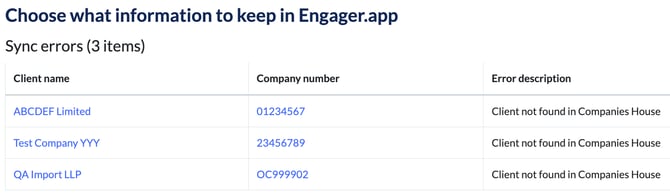
To link the client to Companies House:
- Open the client and go to Step 1: General info.
- Under External systems: Companies House:, select Import from Companies House and search by company name or number.

Or enter the number in the Company number: field.
- Save the client. The overnight job will then try and sync and pull through ready for you to review the very next morning.