
There are times when you will need to mark a Job / Service as being 'on hold'. It could be that you're battling your client for payment, meaning all services should stop until payment has been received and therefore, you want to cease all work on their account. Could be that the accounts are due soon but the client's last accountant STILL hasn't provided PC or trial balances etc. You simply can't move forwards with supporting this client.
So to help with this, you can mark individual Jobs / Services as being 'on hold'. Please note that you cannot select the CLIENT to mark as on hold, you need to mark the JOBS as being on hold. A client's status can only be active, prospect or archived.
Put a job on hold
- Open the client and go to Work > Jobs, then select the Job Card. Select the service name on the card to open the job; selecting the client name opens the client record instead.
- Inside the job, select put on hold.
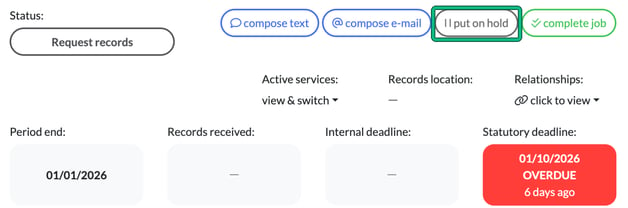
The deadline will then appear as GREY and read ON HOLD, and the put on hold button changes to set active.
The Job Card will now appear as GREY to help separate it from the rest of your outstanding jobs.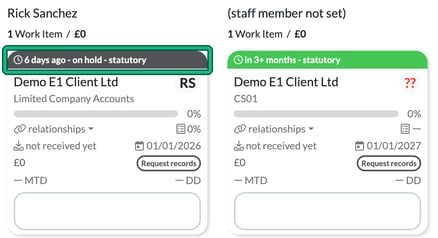
Take a job off hold
Open the job and select set active. The deadline and the Job Card go back to their usual colours.
If your on hold jobs disappear
Just remember, if the On Hold jobs disappear, they will be stored safely behind your Due state: filter. On the Jobs board, open Filters and select Due state:. Tick on hold to show on hold jobs.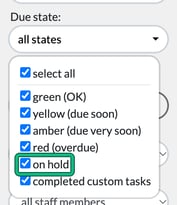
So if you want to draw focus to only outstanding jobs, simply untick on hold, so that you can focus accordingly.
ignore holdups, under Adjustments, is a different feature. Holdups are jobs that will eventually reach a given staff member but are currently in a phase assigned to a different staff member. It has nothing to do with on hold jobs.