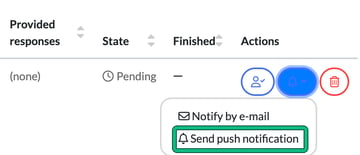
We've introduced a new way of communicating important updates to your client.
You can now send 'push notifications' to your client's Engager mobile app.
This is a great way of notifying clients of signing requests, forms or simply that they have a new document / post item to review. Please note this isn't the ability to send messages to your client.
It helps keep their inboxes clear and as it's a push notification, they're harder to ignore meaning you'll hopefully get their attention more easily!
What is a 'push notification'
A push notification is a short, clickable message sent from an application or website to a user's device, such as a smartphone, tablet, or desktop, even when the app is not actively in use.
These messages appear as alerts, banners, or pop-ups to deliver instant updates, promotions, or reminders.
Now, whenever you send your client a new file, signing request or even form, you can notify them with a Push Notification.
How to send an item via 'push'
The option to use the Push Notification will only appear when you're interacting with either the file, signing request or form.
- Locate your client in question, then select Documents > Files.
- Open the folder you want in the File browser (double-click it), then select upload file.
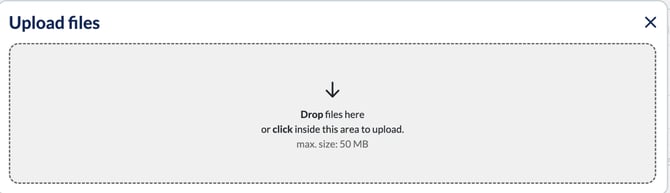
- Upload your file as you would normally: drop it into Upload files, or click inside the area to choose it. The maximum size is 50 MB.
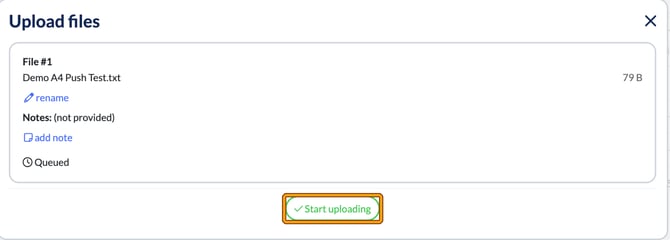
- Select Start uploading.
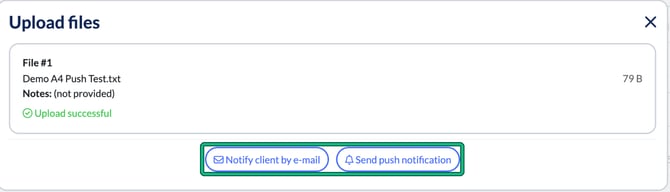
- Once completed, you will now be met by 2 options: Notify client by e-mail and Send push notification. Select Send push notification.
- Send push notifications opens. Then rather helpfully, we'll display whether or not your client has installed the Engager mobile application. If a contact shows mobile app not installed, select Cancel and use Notify client by e-mail as normal.
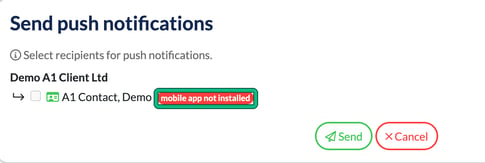
- If you have the option, tick the contacts you want to notify and select Send.
Your client will now receive a 'push notification' to their mobile handset.
So you can now double up your signing requests, forms etc, perfect for any late filers, but also a great touch to show your client that you're meeting them on their preferred method of contact.
Forms
If you want to send a Form to a client, once you've selected your form, you can now notify using the Bell icon under Actions.
- Open the client and select Documents > Form requests.
- In the form request's Actions column, select the bell icon, then Send push notification. Notify by e-mail is also there if your client doesn't have the app.