
Catch-up fees are added in Step 7: Catch-up fees of the client form. This guide will walk you through how to use the catch-up fee tool.
Before you start: choose which services can have catch-up fees
A service only appears in the catch-up fee tool if it allows catch-up fees. Go to Settings > Jobs > Services, select the pencil in the Actions column to open Edit service, and set Catch-up fee applicable: to yes. The catch-up fee will not apply for internal services, regardless of this setting. The Services list has a Catch-up fee applicable column, so you can see which services are set up.

Access the catch-up fee tool
- After entering your services and setting quotes as usual in Step 5: Services & pricing, proceed to Step 7: Catch-up fees.
- Under Adjust catch-up fees, select + add service fee. If you don't need catch-up fees, you can proceed without any further action.
Calculate catch-up fees
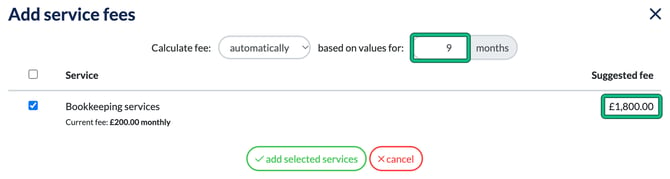
- In Add service fees, leave Calculate fee: on automatically and the tool will calculate the catch-up fees based on the current financial year. You can adjust the months in based on values for: if needed. For instance, if you need to account for both the current and previous financial year, you can enter 14 months.
- Tick the services subject to catch-up fees. Each shows its Current fee: and a Suggested fee, which is the monthly fee multiplied by the number of months. Select add selected services.
Review each service and copy the fees
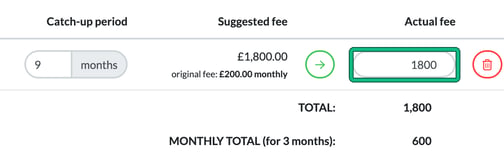
- Confirm and adjust the number of months for each service in Catch-up period if needed. Example: if a service only requires two months of catch-up fees, you can set it accordingly.
- Select the arrow next to each Suggested fee to copy it into Actual fee, or type your own amount. The TOTAL: updates below.
Customise fees
- Round numbers: tick round each fee up to the nearest 5.
- Custom fees: select + add custom fee for fees not covered by any service. Example: add a custom one-month fee of £100.
- Discounts: if the client negotiates a discount, tick apply a discount of and enter the percentage, and the system will recalculate the fees.
Payment options
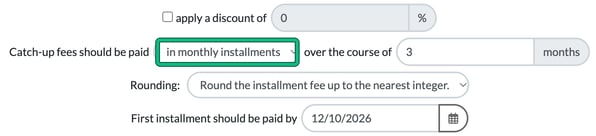
- Decide if the client will pay in one lump sum or in monthly instalments, using Catch-up fees should be paid:
- in one go: the total amount is due in one payment.
- in monthly installments: enter the number of months in over the course of, and the system will work out the monthly amount, shown as MONTHLY TOTAL. Choose how to round it in Rounding:.
- Enter the date for the first instalment in First installment should be paid by.
- Select Save at the foot of the client form to save all the details and changes.
Generate Letters of Engagement
Navigate to your letters of engagement and generate the document. There will be a new page detailing the catch-up fees: in Customise document it appears as the Engagement Letter - Catch-up Fee Section.
- This page will explain the catch-up fees, list included services, and provide a breakdown of the total fees, discounts, VAT, and the payment schedule.
- The payment schedule is a detailed payment plan showing the due date and amount of each instalment and the balance after each payment.
The catch-up fee tool allows for quick, easy, and customisable fee calculations. You can edit all text in the template and adjust the layout as needed.