Unfortunately you can't do this just yet in Engager. You can reply to an email, but there's no forward option.
This is something that we will be working on. You can vote to improve the chances of us working on this feature next: vote for email forwarding on the Engager feedback board.
What you can do in the meantime, and this is perhaps better, is if you want to assign a team member an action, instead of forwarding an email, create a task instead.
Create a task from an email
Received an email that you need to act on later that week? Maybe a client’s asked you to review their accounts before the weekend.
- Open the email in Emails and, from the email options, select tasks.
- Select + new linked task.
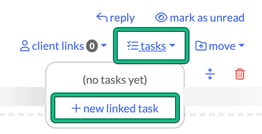
- If you’ve not LINKED the email to a client, Choose client opens. Choose a matching client, or choose another client from your database and select confirm. You can also proceed without a client.
- In the task form, select which staff member you want to assign the task to, then define what you want the task to say / do / repeat etc. Mark it as high priority too if needed, using Priority: High.
This is a much more effective way of operating, than say forwarding on an email for a team member to deal with it. It’s more action-based.
When you’re looking through the emails, we’ll even give you visual indicators of tasks: tasks on an email shows a count of the tasks linked to it, and opening it lists those tasks and when they’re due. Again very handy when trawling through emails.
Seeing client emails outside of the integration
Any email, text, meeting or call log can be viewed by the CRM feature, within the client.
Once you’ve sent an email from the client’s account, or linked via the Email integration, it will be visible in the CRM.
- Simply open the client and, in the left-hand menu, select CRM > Communication.
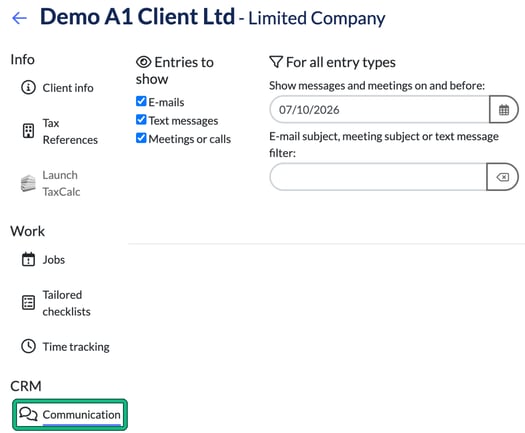
From here you can see the log of all interactions with the client, even the Auto Reminders! Use Entries to show to choose E-mails, Text messages or Meetings or calls. Entries are ordered by date, latest first.
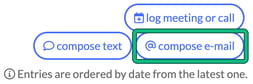
Although we’re not a CRM provider, we’ll still show you email logs. You can search with the E-mail subject, meeting subject or text message filter:, fire out emails or SMS with compose e-mail or compose text, and even log calls / meeting outcomes against that record with log meeting or call.