
Efficiently managing email communication is crucial for maintaining a smooth workflow. Engager's Automatic Email Linking feature ensures that emails are accurately linked to the correct client or contact profile, saving you time and effort.
Here's everything you need to know about configuring and using this feature.
Practice-Wide Email Settings
To configure global email linking settings for your practice:
- Go to Settings > Communication > Practice email. These settings apply to all users.
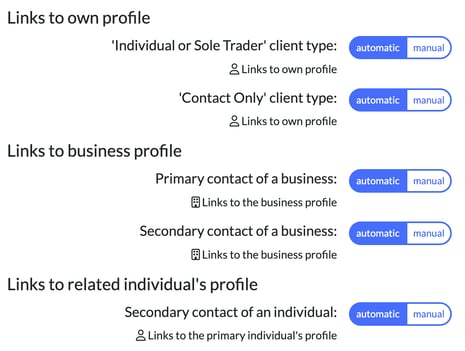
- Under Auto email linking, adjust the defaults for how emails should be linked, choosing automatic or manual for each.
Options include:- Links to own profile: the 'Individual or Sole Trader' and 'Contact Only' client types.
- Links to business profile: the primary or secondary contact of a business.
- Links to related individual's profile: the secondary contact of an individual.
These settings will affect:
- Outbound emails sent from outside Engager (e.g., Outlook or Gmail website). Emails sent within Engager are always automatically linked to the correct client.
- Inbound emails that are not already part of a conversation linked manually. Emails received in relation to manually linked threads will continue to be linked based on the existing connection.
User-Specific Email Settings
Individual users can decide whether their emails should be shared with other users:
- Navigate to Settings > Communication > User email.
- Under Email linking, choose yes or no for whether emails linked from your personal mailbox should be readable by other users by default.
If an email isn’t readable by other users, its subject and other metadata still show in the client’s communication log, but the body is hidden. The setting doesn’t apply to emails linked in the past.
Client Profile-Level Customisation
For a specific client profile:
- Open the client and go to Step 3: Related individuals & contacts.
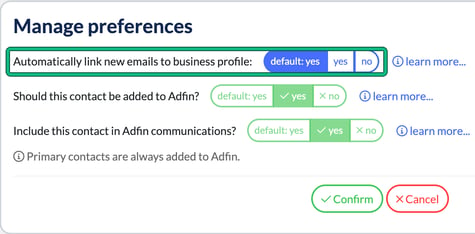
- On the contact’s card, select Manage preferences and set Automatically link new emails to business profile: to default: yes, yes or no, then select Confirm.
Note: These settings will override global defaults for that client or contact.
Individual Profile Customisation
For individual contacts, you can override global settings at the profile level:
- Open Step 1: General info of the individual’s profile.
- Adjust Automatically link new emails to this profile: (default: yes, yes or no).
How Automatic Email Linking Works
When automatic email linking is enabled:
- Any inbound email that matches a client or contact's profile will automatically be linked to their Communication tab, unless manually overridden. Emails received in response to manually linked threads will continue to follow the same connection.
- Any outbound email sent from outside Engager (e.g., via Gmail or Outlook) will also link to the relevant client, provided the email address matches the profile.
- The linking behaviour will follow the criteria defined in your global or customised settings.
Benefits of Automatic Email Linking
- Time-saving: No need to manually link emails to the correct profiles.
- Improved organisation: All email correspondence is readily available within the client’s Communication tab.
- Customisable: Tailor settings to match the specific needs of your practice or individual users.
Frequently Asked Questions
Q: What happens to emails already linked manually?
Emails linked manually will not be affected by the automatic settings.
Q: Can I unlink emails that are linked automatically?
Yes, you can manually unlink emails if required from the Communication tab.
Q: What happens if I send an email from Gmail or Outlook to a client?
A: As long as the email address matches a client profile in Engager and automatic linking is enabled, the email will be linked to their profile.
With Engager’s AutoLinking, you can simplify email management and ensure consistent communication tracking across your practice. For further support, feel free to explore our help centre or contact our support team.