
Engager doesn't support packages or bundles natively. This article is a workaround: it shows you how to set up a package using a custom service.
There's a trend of accountants offering their services as a package / bundle. This makes perfect sense and in some respects, is what your end client would expect: a 'no surprises' monthly service.
Some of you offering these packages want to keep their pricing breakdowns clear off the Letters of Engagement and have a simplified, monthly fee to capture all.
To set this up, you will need to make a few subtle amendments in your Engager account: the LOE wording and fee structure, Prospect email and a new, custom service.
In the example, let's call our shiny new service The Gold Package and we offer this for a monthly fee of £199+VAT.
1. Letter of Engagement
- Head to Settings > Document content > Document templates.
- Locate the LOE for the LTD (Engagement Letter - Limited Company, in the Letters of Engagement category) and select duplicate (the copy icon), as we want to preserve the original LOE.

- Rename your LOE to something memorable in Name:.
- Scroll down to Scope of Services and then reword to something appropriate and inclusive of what your package covers. In our example, we know that the Gold package covers off everything, so we've entered the name of the package and the price. Remember, you will still ADD in the Services actually provided when you create your Proposal and LOE.
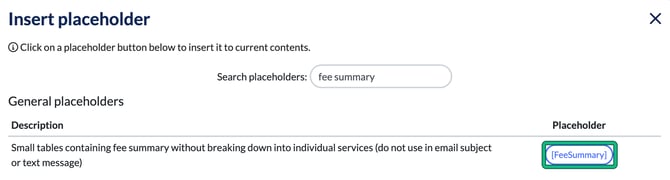
- Then in Fees, as we don't want to have all service pricing broken down, we REMOVE [FeesTable] as we don't want anything itemised. We want to replace it with [FeeSummary] instead, so add in this placeholder by selecting [ ] insert placeholder.
And that's it for your Letter of Engagement for your Package.
2. The Gold Package service
Next up, we need to create Gold Package as a Custom Service.
- Head to Settings > Jobs > Services and select + add custom service. This opens New service.
- Keep this simple: call it Gold Package, make sure Enabled: is yes and Internal only: is no.

- Scroll down to Schedule of Services template for LoE:. This field attaches a schedule describing the service to the Letter of Engagement, so select (or create) a document template that describes what's included in your package, rather than a full Letter of Engagement.

- Then Save.
- To REALLY neaten up how this will eventually appear on your LOE etc, DRAG your new service to the top of your services page, using the handle in the first column. This will now sit at the top of your services list, ready to be switched on.
Remember, we still want to turn on ALL services that sit under our new package. On the client's Step 5: Services & pricing, go through and enable the services, along with 'Gold Package', but remember, only the Gold Package needs to have the chargeable amount against it: remove all other monetary amounts (the Selected fee:) next to the other services.
Complete the rest of the steps as normal.
3. The Proposal email
We also need to ensure that the PROPOSAL email also reflects the new package and LOE, so for continuity, let's update it.
- Head to Settings > Communication > Message templates.
- Locate the Proposal template (for example E-mail with acceptance link for Proposal and Letters of Engagement), select duplicate and rename appropriately.
- We need to replicate what we've just done by removing [FeesTable] and replacing it with [FeeSummary], using [ ] insert placeholder to email body.
Then that's it, you've tailored your new Gold Package LOE, Service and Proposal email.
Issuing your shiny new Letter of Engagement
So this is how it should look in reality once you've enabled these on your client's account.
- Head to the client and enable the services as above.
- Then go to Documents > Proposal, LoE & LoD and create a new document (if the client has none yet, select Create your first document).
- In Create new from template, choose Letters of Engagement and, under Contents:, choose Customise, as we will need to change these to use our CUSTOM docs etc.
- In Customise document, click the chevron next to the Engagement Letter, then select the new template in Document template to use:.

- Select Generate. This pulls through your shiny new LOE with pricing structure and reference back to Gold Package.
You'll now see that there are no prices / fees associated to the individual services, just the Monthly Cost of the Gold Package.
If you wanted to remove all mentions of fees / line items etc simply REMOVE the mention of FEES (tables and Summary), and bulk out your wording on the LOE.
When you're happy to send, hit SEND but remember to change the TEMPLATE dropdown to Gold Package.