Please note that this is a guide for the end user, your client. It is not for the accountancy practice.
The Engager mobile app shows the same screens as the Client Portal on a phone, so you upload files the same way in both.
Add a file from the mobile app
- Open the Engager mobile app.
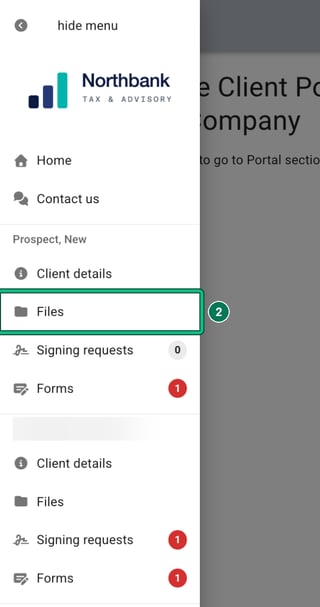
- Tap the menu button (three lines, top left of the CLIENT PORTAL bar). The menu lists each client you're linked to, headed with the client's name. Select the appropriate entity: whether you're doing it for the LTD or you're uploading something for your personal tax, you need to select the correct entity. Under that client's name, tap Files.
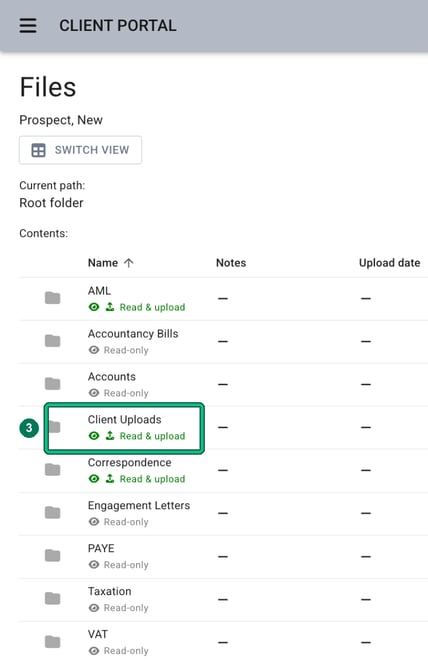
- Select the appropriate folder, like Client Uploads. Folder names are set by your accountant, so yours may differ. You can only upload to a folder marked Read & upload. Folders marked Read-only can't take uploads.
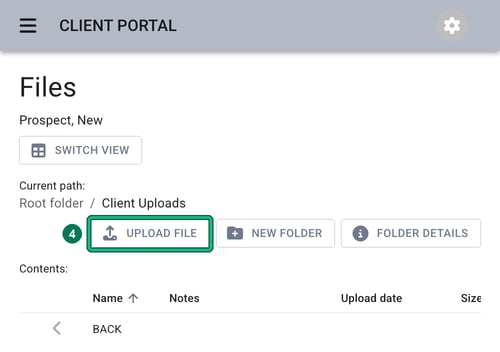
- Inside the folder, tap UPLOAD FILE.
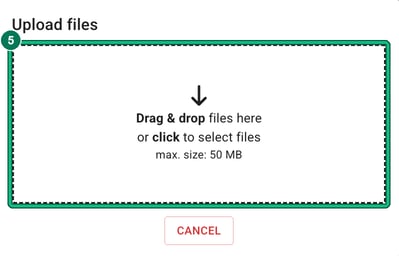
- The Upload files window opens. Tap the box that says Drag & drop files here or click to select files, then locate your desired file on your handset. Each file can be up to 50 MB.
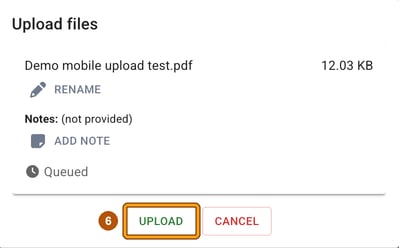
- Your file is listed as Queued. If you want to, use RENAME to change its name or ADD NOTE to add a note to it. Then tap UPLOAD.
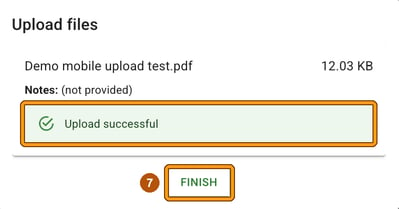
- When you see Upload successful, tap FINISH.
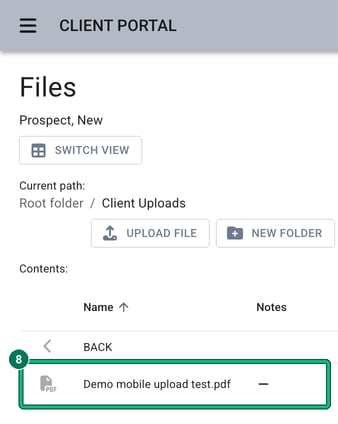
- It has now been saved. Your file is listed in the folder with its upload date.