
We have a handy feature that allows you to add client's company information very quickly but also accurately!
You can go to Companies House directly and pull this data into your Engager account.
For more information on what the Companies House link does, see Companies house updates, what we’ll check for you and what you need to do to accept the change.
Import the company from Companies House
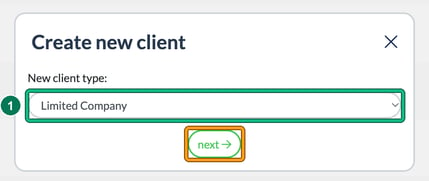
- Head to Clients and select + new client. In Create new client, choose the New client type: (for example Limited Company or Limited Liability Partnership), then select next.
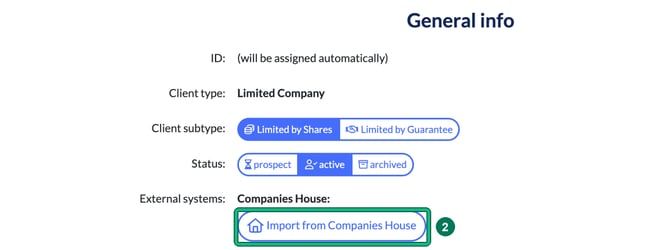
- On General info, under External systems: > Companies House:, select Import from Companies House.
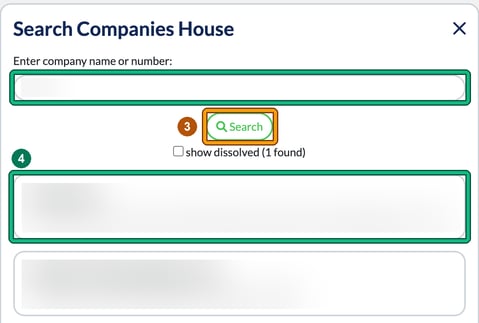
- In Search Companies House, type the name or company number into Enter company name or number: and select Search.
- Select the company you would like to add. Its details and Officers are shown below.
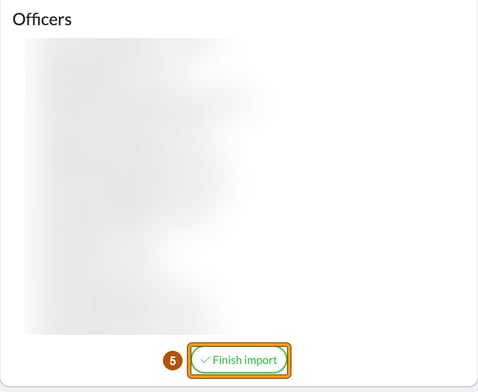
- Select Finish import. This is going to pull through the basic info about the company, from company reg office, filing data and deadlines.
- Select next: Contact info. Check and update addresses if different from Companies House: they're listed under Addresses, and you can add another with + New Address. Please remember that the Ltd doesn’t need an email, just the directors: the company’s Contact info only has Addresses, and each related individual has their own Email: field. Then select next: Related individuals & contacts.
Add the director
- Select + add. All related individuals have access to this business’s Client Portal. If a director is also a related individual on other Ltds that you act for, they get one Portal login for all of them, which is super handy for the client.
- In Add related individual, select use officers imported from Companies House.
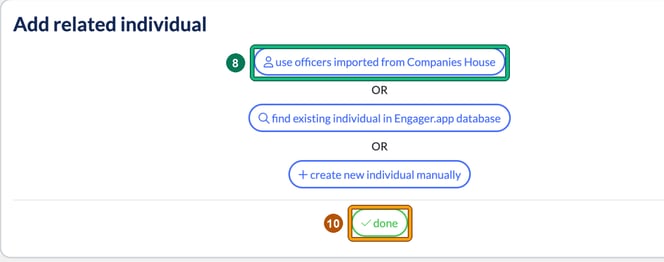
- Select the Director. Select only the officers that you really need, like the directors whom you do SATRs for. Each imported officer has a card showing any Matching names from Engager.app database: and a + create new client button.
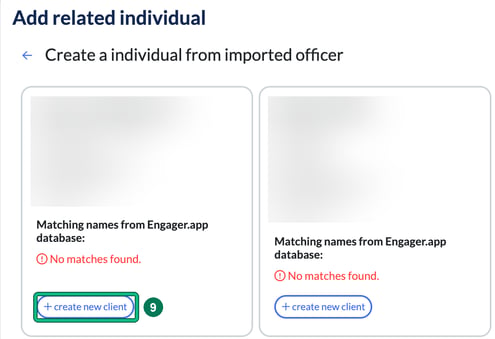
- Select done.
Services and dates
- Select next: Related businesses, add any related businesses with + add, then select next: Services & pricing.
- Select the play button beside Limited Company Accounts to switch the service on. It turns green.
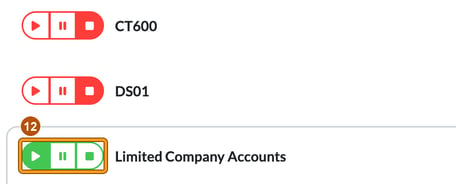
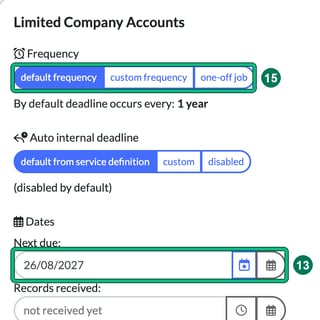
- Select next: Service details. Check the dates pulled through from Companies House match your records, including Account Reference Date: and CS01 Date: at the top and each service’s Next due: date.
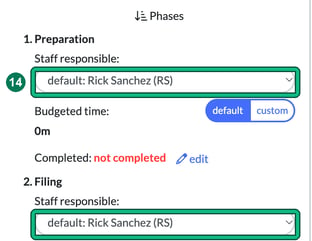
- Select who’s going to be doing each phase of the job: under Phases, choose the Staff responsible: for each phase.
- Check Frequency is right for each service: default frequency, custom frequency or one-off job.
Catch-up fees, external systems and terms
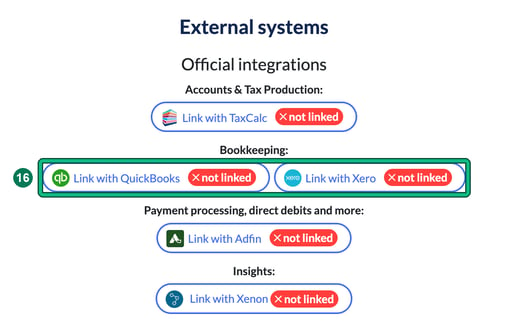
- Select next until you reach External systems. On the way, Catch-up fees asks “Do you want to calculate the fees automatically the first time round?”: choose Yes or No and select confirm. External systems is where you can link to TaxCalc, QuickBooks, Xero, Adfin and Xenon to save duplicating info later.
- Select next: Terms and check the terms for this client.
- Select next: Summary, check everything, then select Save. Saving is only possible after completing all steps.
