There are times when you'll need to prepare an official looking document for a client, that has company branding / logos, addresses etc and so we've developed an Ad Hoc (adhoc) Document feature within your Engager account.
You could use this feature for anything from reports for your client, a letter confirming figures for a mortgage application or a simple letter.
To get this set up in your Engager account, you will need to spend time in the Document Designer area first.
Set up the Ad-hoc PDF design
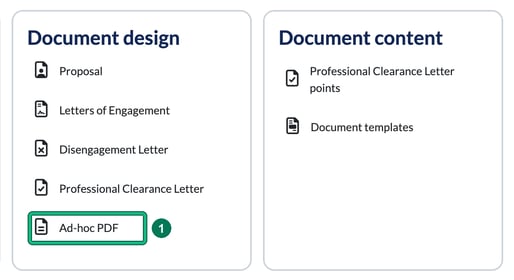
- Head on over to Settings > Document design > Ad-hoc PDF.
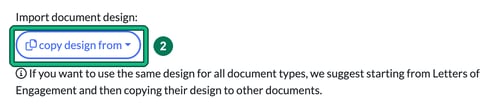
- If you've already set up your LOEs / Professional Clearance documentation etc, and you're happy with the themes / logos etc, simply select copy design from under Import document design:, then select your finished document (Proposal, Letters of Engagement, Disengagement Letter or Professional Clearance Letter). This will then pull through the colours / branding and theme previously used throughout your documentation, and this will keep everything uniform and professional. Then hit Save at the bottom.
Once you're happy with the designs, this will now be ready for you to use in your Engager account as a PDF.
Where to locate PDFs in Engager and how to use
The thinking being is that you're going to save these documents against your client record and potentially you'll want them to APPROVE the document and so this is why Ad Hoc PDFs are here.
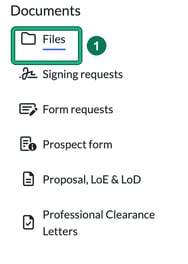
- As these are specific to your client, locate the appropriate client. Then, in the left-hand menu under Documents, select Files. This opens the File browser.
If you can't see the options to create the PDF, don't panic, you need to select the folder destination first. At the Root folder you'll see the note "Choose a folder below to access and modify its contents".
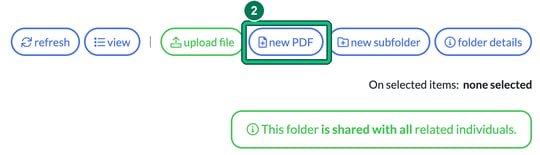
- Open the folder where you want to create the PDF and then select new PDF. This opens New PDF from template.
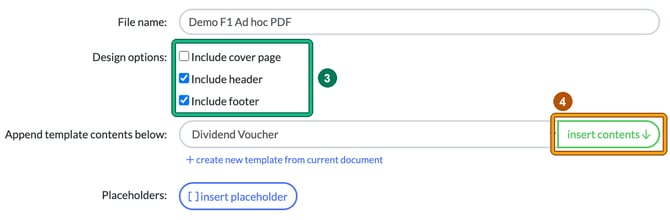
- From here, you can start to craft your new PDF document. Enter a File name:, then under Design options: decide whether you want a cover page (Include cover page, unticked by default) and whether to include the headers and footers (Include header and Include footer, ticked by default).
- We've handily built you an option to pull through any of your existing documents into your new PDF. So if you want to use an existing template, simply select it from the Append template contents below: dropdown, then select insert contents. This will then populate the document.
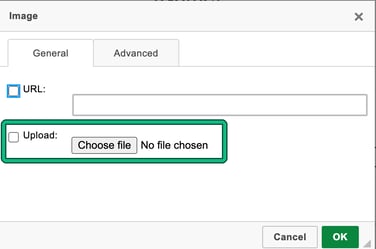
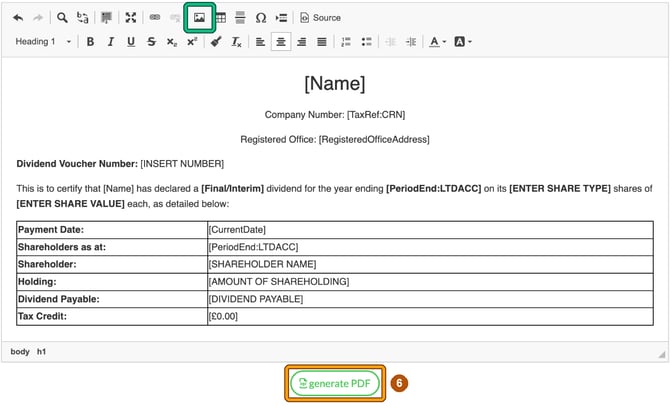
Top Tip: if you want to use this new PDF template again, simply hit + create new template from current document, just under the dropdown. - You can then edit to your heart's content. Or why not create your PDF from scratch? You have full functionality similar to preparing a Word document. You can also upload images into your PDF using the Image button (choose Upload: and Choose file), and copy and paste existing images into your document. There's a rather handy resizing tool also, so with a bit of trial and error, you can get your sizing and position spot on.
- When you're satisfied everything looks perfect, simply hit generate PDF at the bottom of the page. Any text in square brackets that you need to fill in yourself, such as [INSERT NUMBER] in the Dividend Voucher template, must be replaced first. If any is left in, Engager won't generate the PDF and lists it under "Unsupported placeholders found".
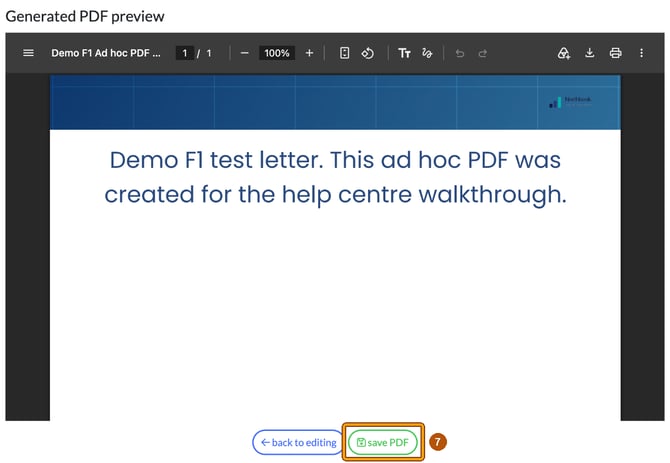
- Check the Generated PDF preview. You can download or print off the document from the preview, or select back to editing to make changes. When you're happy, select save PDF. This is an example without a cover page.
Once saved, Engager asks "Do you want to notify client by e-mail about this document?" Select Yes to notify the client directly, or No to skip it.

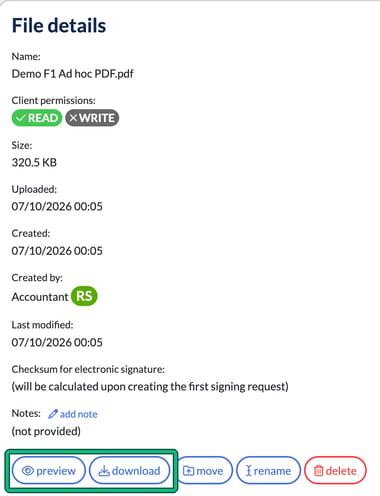
The PDF is saved in the folder you chose. Select its name to open File details, where you can preview or download it at any time. If you want your client to approve the document, use Signing requests > request signing on the same page.