
This is step 1 of 10 in our Engager setup series.
In order for you to have the best possible start to life with using the Engager software, we recommend that you work through our 1-10 steps one by one. Doing this before importing your clients is vital to a fast start and for you to see the benefits of Engager quickly.
To begin, set the foundations by entering your company information, defining default terms, customising your document layout and setting up your users of application.
Enter your company information
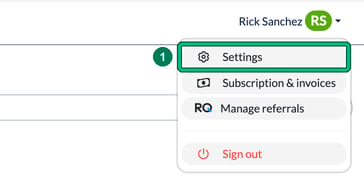
- Select your name in the top-right corner, then select Settings.
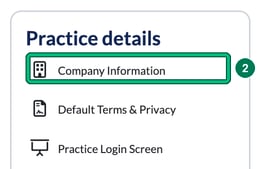
- Under Practice details, select Company Information.
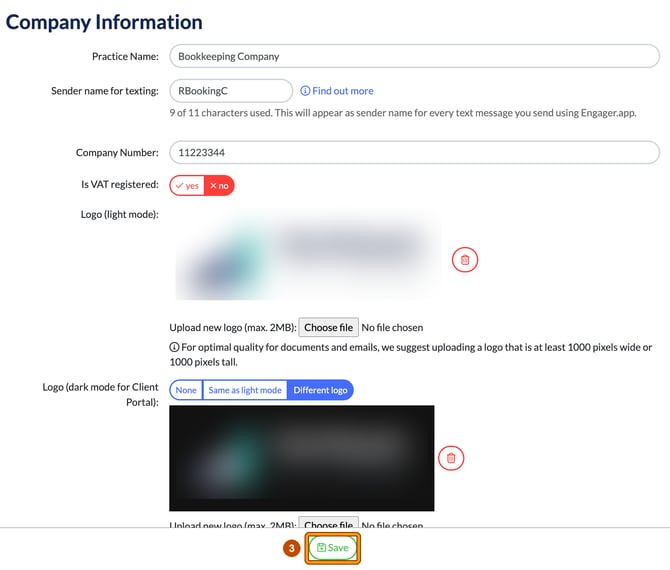
- Work through every field, one by one, then select Save. Every field has a purpose, and if you skip any it could have a knock-on effect in your Engager account.
Then set up the rest of your foundations
Each of these is on the same Settings page:
- Default terms: Practice details > Default Terms & Privacy
- Document layout: the Document design section (Proposal, Letters of Engagement, Disengagement Letter, Professional Clearance Letter and Ad-hoc PDF)
- Users: Staff > System users